

TL;DR: Namecheap wildcard redirects don’t support HTTPS — every subdomain visitor using HTTPS sees a security warning instead of being redirected. You also can’t redirect individual subdomains to different destinations. Fix it with Domain-Forward.com (free plan): add a wildcard redirect, point a CNAME
*record toedge.domain-forward.com, and get automatic SSL for all subdomains.
You have multiple subdomains — blog.example.com, shop.example.com, maybe dozens more — and you need them all to redirect to your new domain. Namecheap offers a wildcard redirect feature that seems perfect. You set it up, it works over HTTP, and then you test with HTTPS…
It fails. No SSL certificate. Browser security warning. Your visitors bounce.
This is the #1 problem with Namecheap wildcard redirects: no HTTPS support. And there’s a second problem: you can’t route individual subdomains to different destinations. It’s all-or-nothing.
This guide explains both limitations and shows you how to set up wildcard redirects that actually work over HTTPS.
What Are Wildcard Redirects and When Do You Need Them?
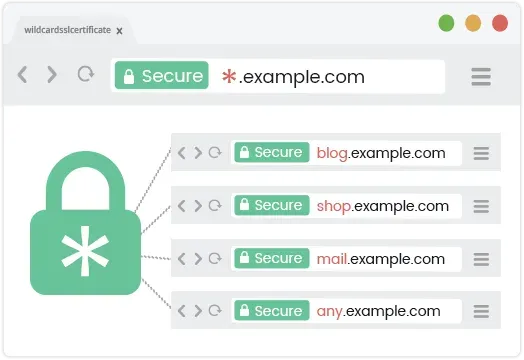
A wildcard redirect forwards all subdomains of a domain to a destination. Instead of creating redirects one by one for blog.example.com, shop.example.com, and forum.example.com, a single wildcard rule handles everything.
Common scenarios where you need wildcard redirects:
- Domain migration: You’re moving from old-domain.com to new-domain.com and need all existing subdomain traffic to follow
- Subdomain consolidation: You have dozens of subdomains and want them all pointing to one site
- Catching typos and variations: Redirect any/all subdomains — even ones that don’t exist yet — to your main site
- Decommissioning services: Shutting down old subdomain-based services and redirecting users to the main site
Why wildcard redirects matter for SEO
When you migrate domains, every broken subdomain link bleeds SEO value. Wildcard redirects ensure that search engines follow every subdomain link to your new domain, preserving the ranking power you built over time. Without them, you’ll see 404 errors in Google Search Console for every subdomain URL that was ever indexed.
How to Set Up Namecheap Wildcard Redirects (HTTP Only)
Namecheap’s built-in wildcard redirect works for HTTP traffic, but will not work for HTTPS. If you need HTTPS (and you do — see the downsides section below), skip ahead to the Domain-Forward.com solution.
Step 1: Sign Into the Namecheap Dashboard
If you aren’t logged in, you can log into the admin dashboard here. If you’re already logged in, you can continue to the second step.
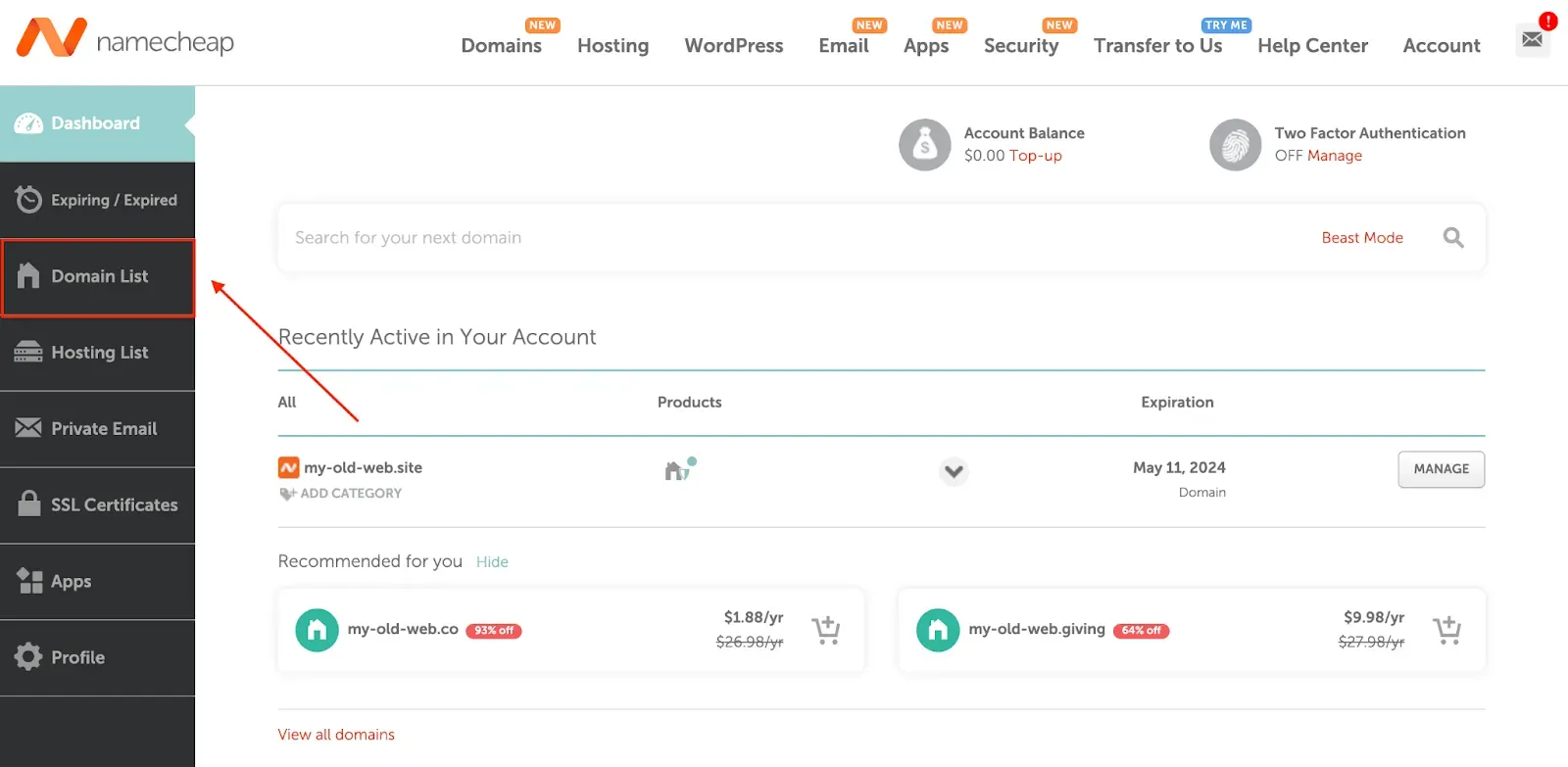
Step 2: Navigate to the Domain List
After gaining access to your dashboard, scroll down and select the option for Domain List. The image below shows you exactly how to go about that:
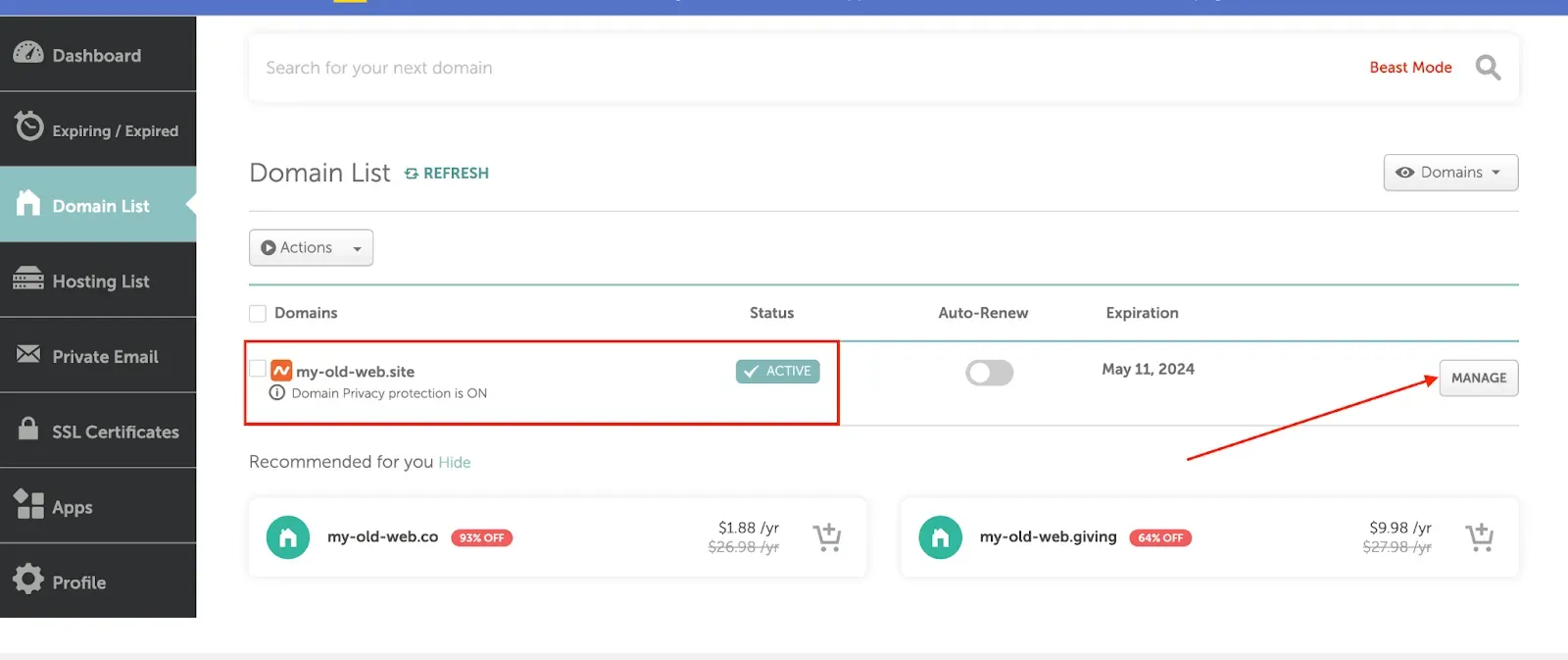
Step 3: Select the option for Manage
After clicking on the option for Domain List, a new page should launch. Scroll down to the domain you’d like to redirect and select the option for Manage.
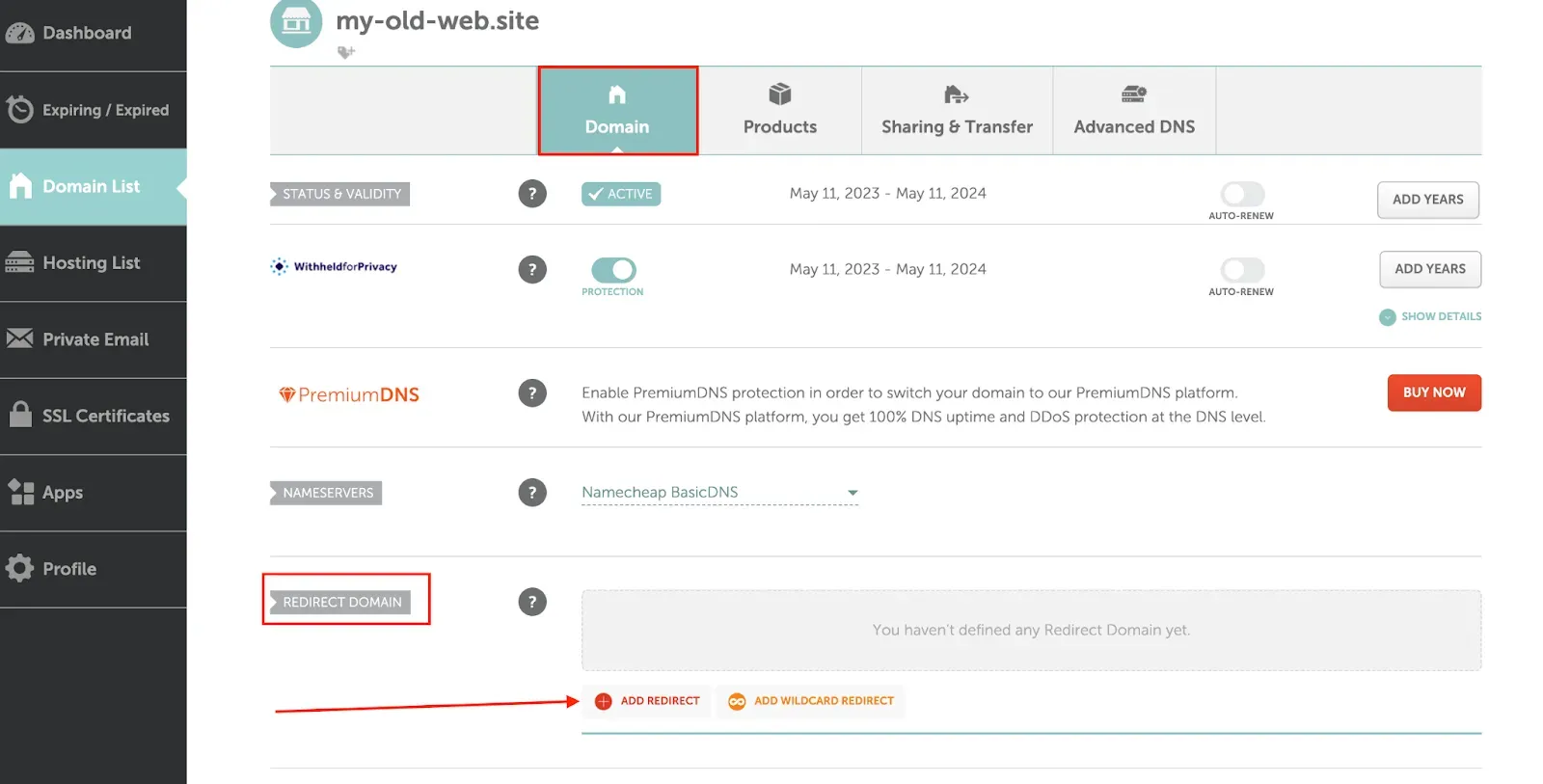
Step 4: Redirect Domains > Add Wildcard Redirect
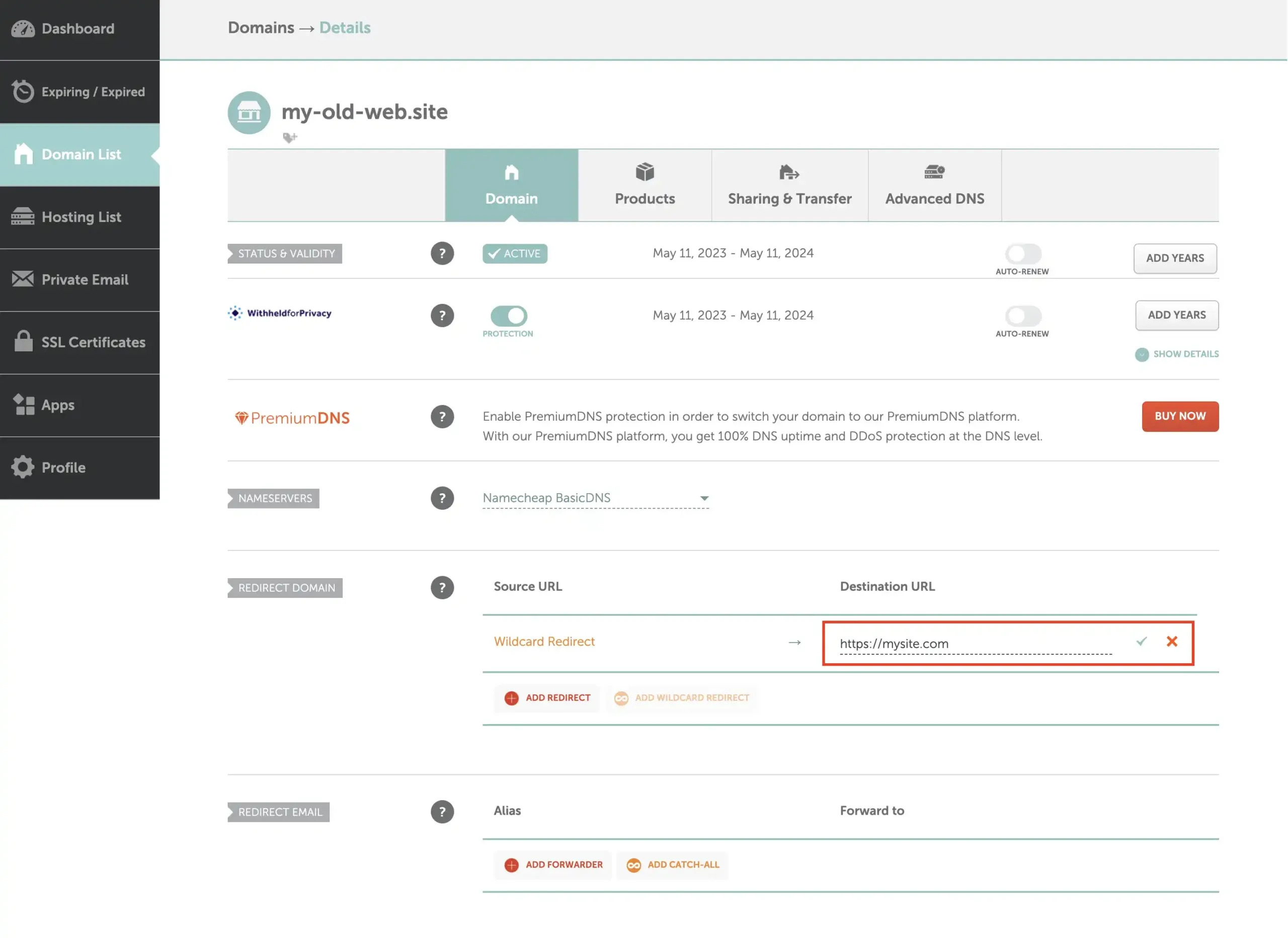
Here is where things get interesting, so be patient while we walk you through. After clicking the option for Manage, scroll all the way down to the Redirect Domain section and click on the option for Add Wildcard Redirect.
Step 5: Configure Wildcard Redirect
Enter the destination URL where all traffic should be redirected to. For the destination URL, you can also use HTTPS for a more secure experience. Once you’re happy, just click on the green checkmark to apply the changes.
Step 6: Check and Remove Unnecessary DNS Entries
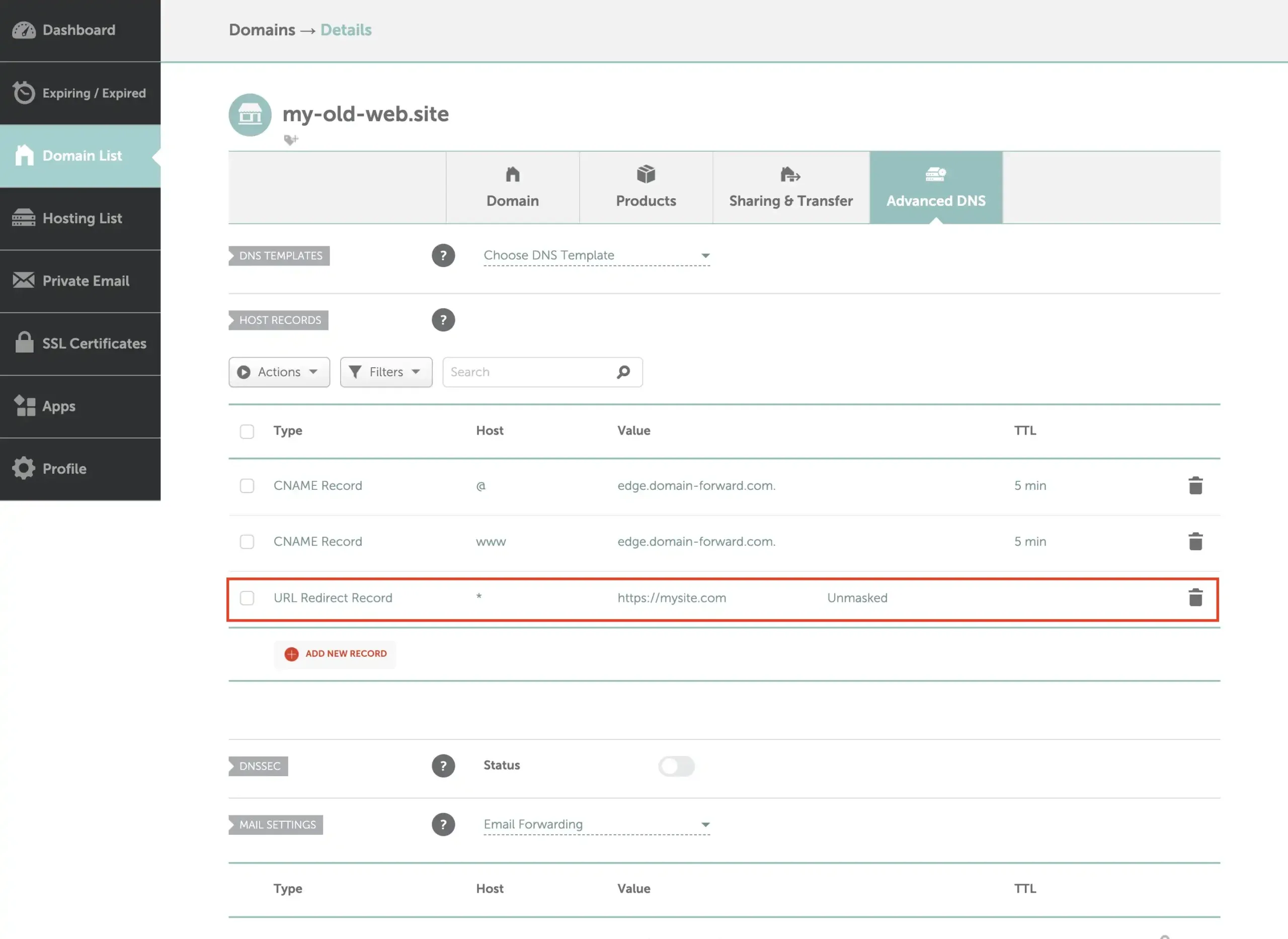
If you already had some web hosting or other rules for the affected subdomains, then you also need to remove those entries from under the Advanced DNS view.
You can also see the created wildcard entry below highlighted. Make sure that you DO NOT delete that row because that also removes the wildcard configuration from the previous steps.
Step 7: Wait for Changes to be Applied
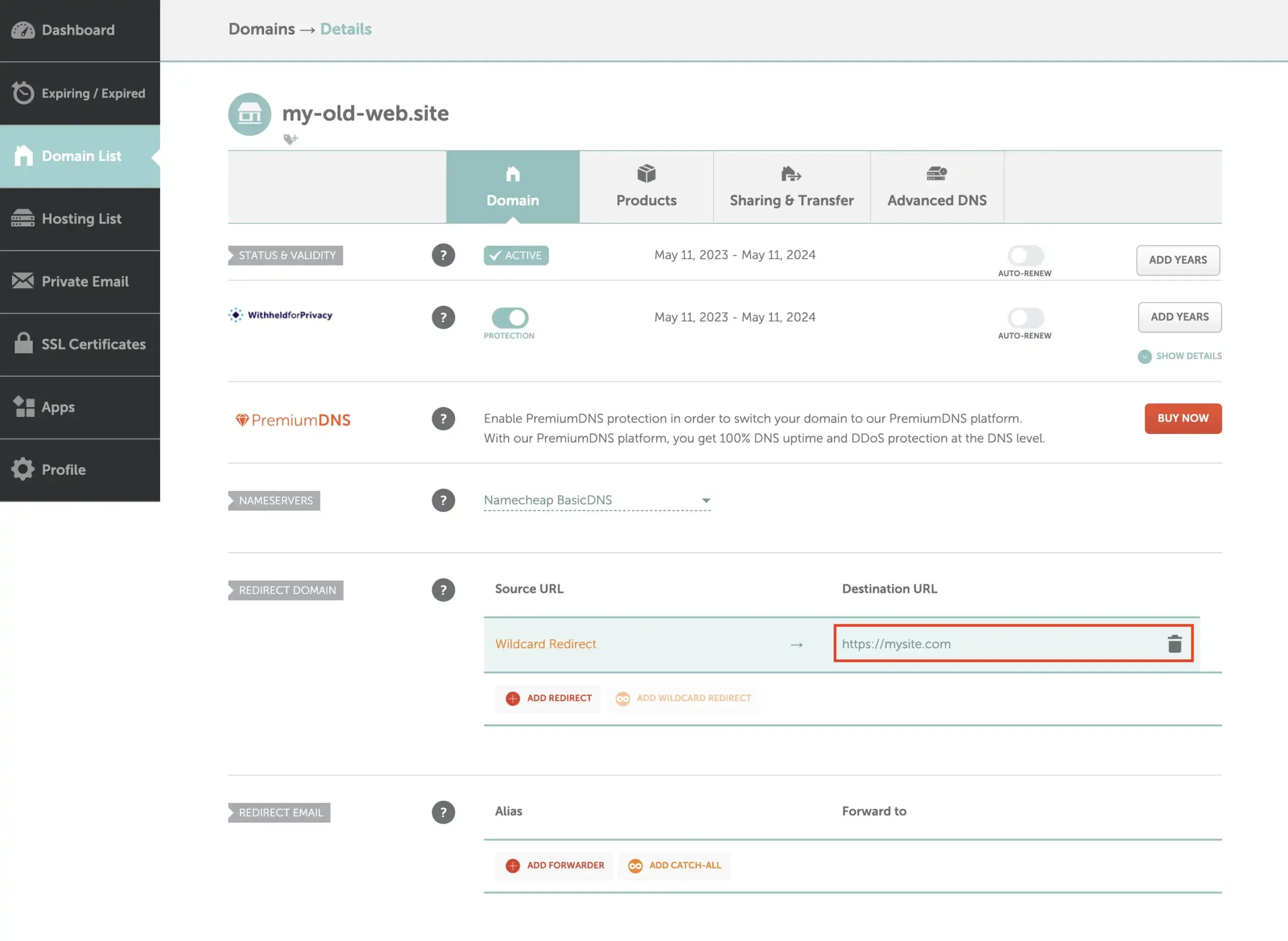
Save the changes, and the wildcard redirect should be active within 30 minutes. It can take longer depending on your previously used DNS settings and whether your computer is caching the old redirect somehow.
From the image below you can see that the wildcard redirect is configured in the “Redirect Domain” section.
Step 8: Test the Redirects
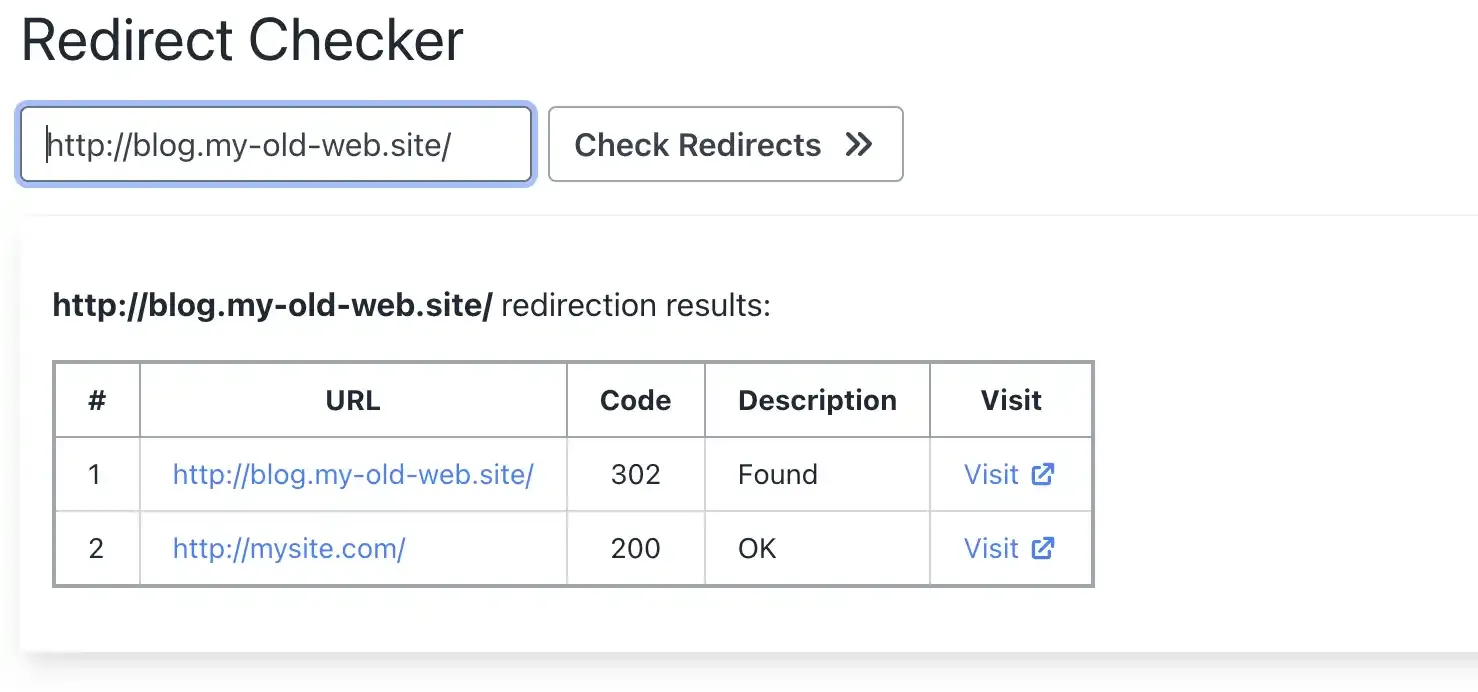
As we can see from using a redirect checker, the “shop.my-old-web.site” gets redirected correctly to the destination that we configured above.
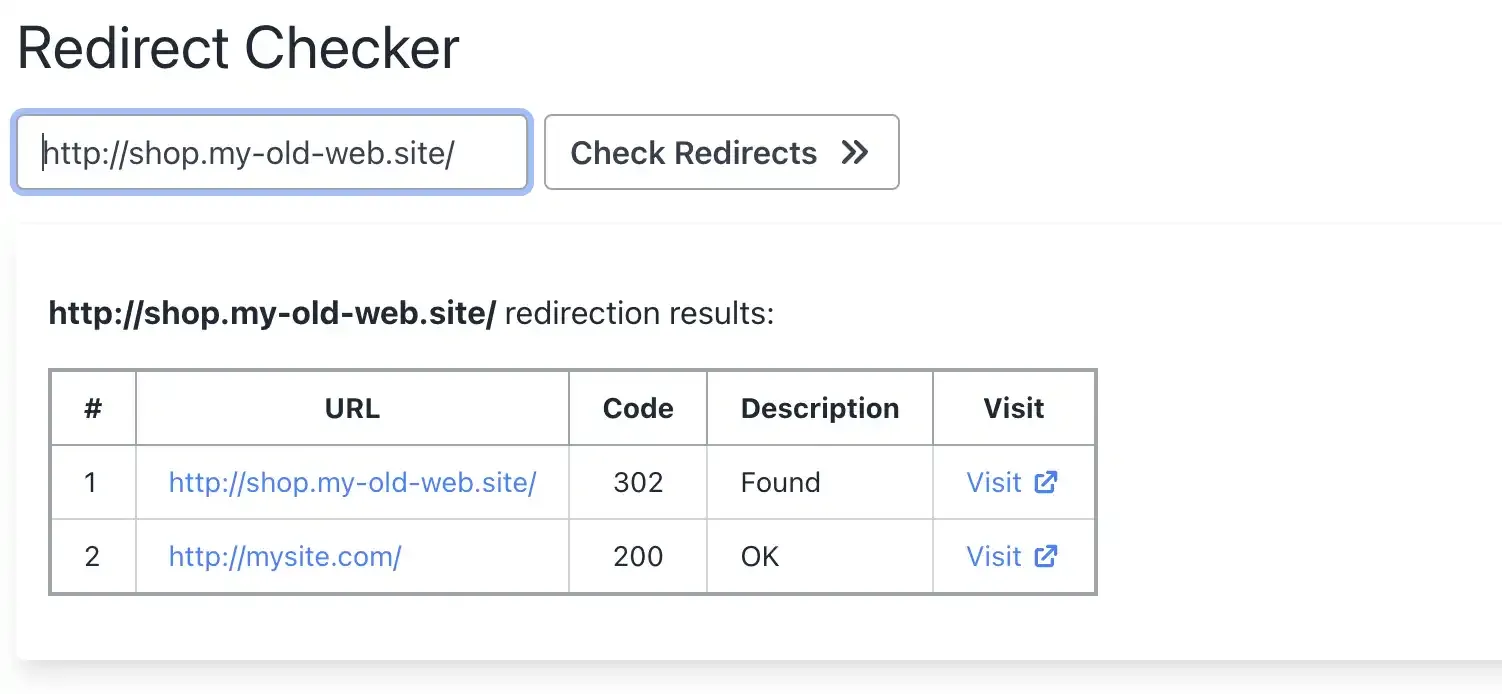
We can see that the same is true for blog.my-old-web.site.
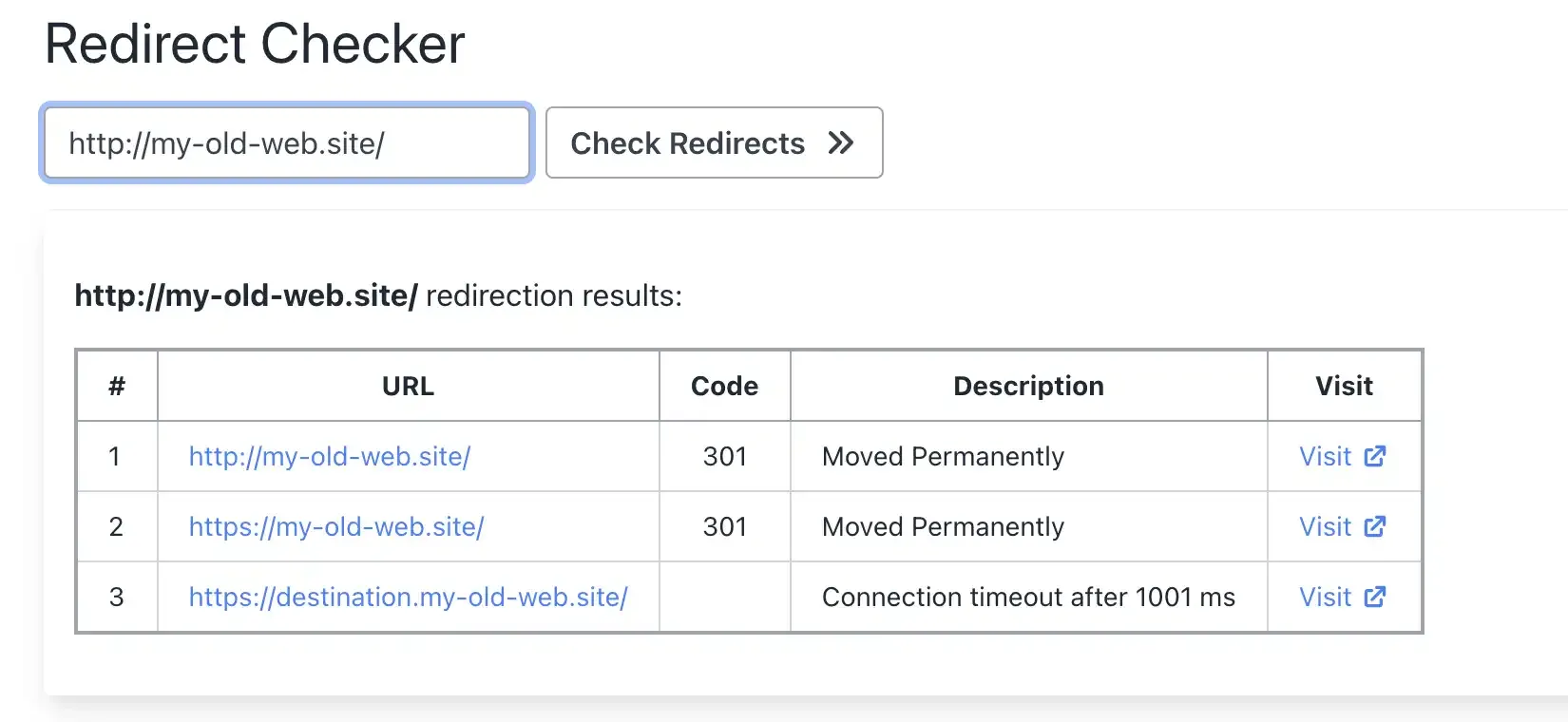
We had an already explicitly defined DNS entry configured for the root (and www) domains. This means that the wildcard does not apply to those two, and the traffic gets redirected to a different destination than the wildcard. In the image below, row #3 is showing a failure because “destination.my-old-web.site” isn’t hosted.
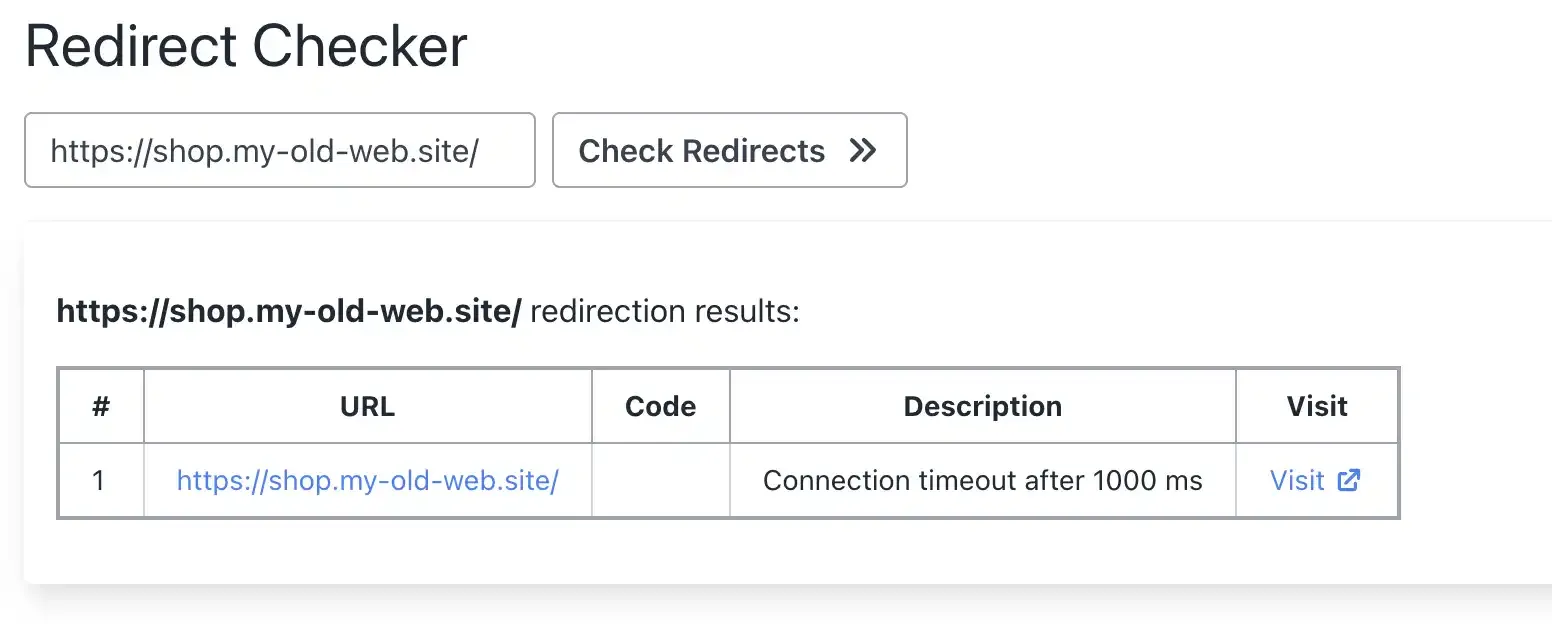
Step 9: HTTPS does not work — and that’s a dealbreaker
When you test any subdomain redirect with HTTPS, it fails. This is the critical flaw in Namecheap’s wildcard redirect feature.
Why Namecheap Wildcard Redirects Are Broken for Modern Browsers
No SSL certificate = no HTTPS
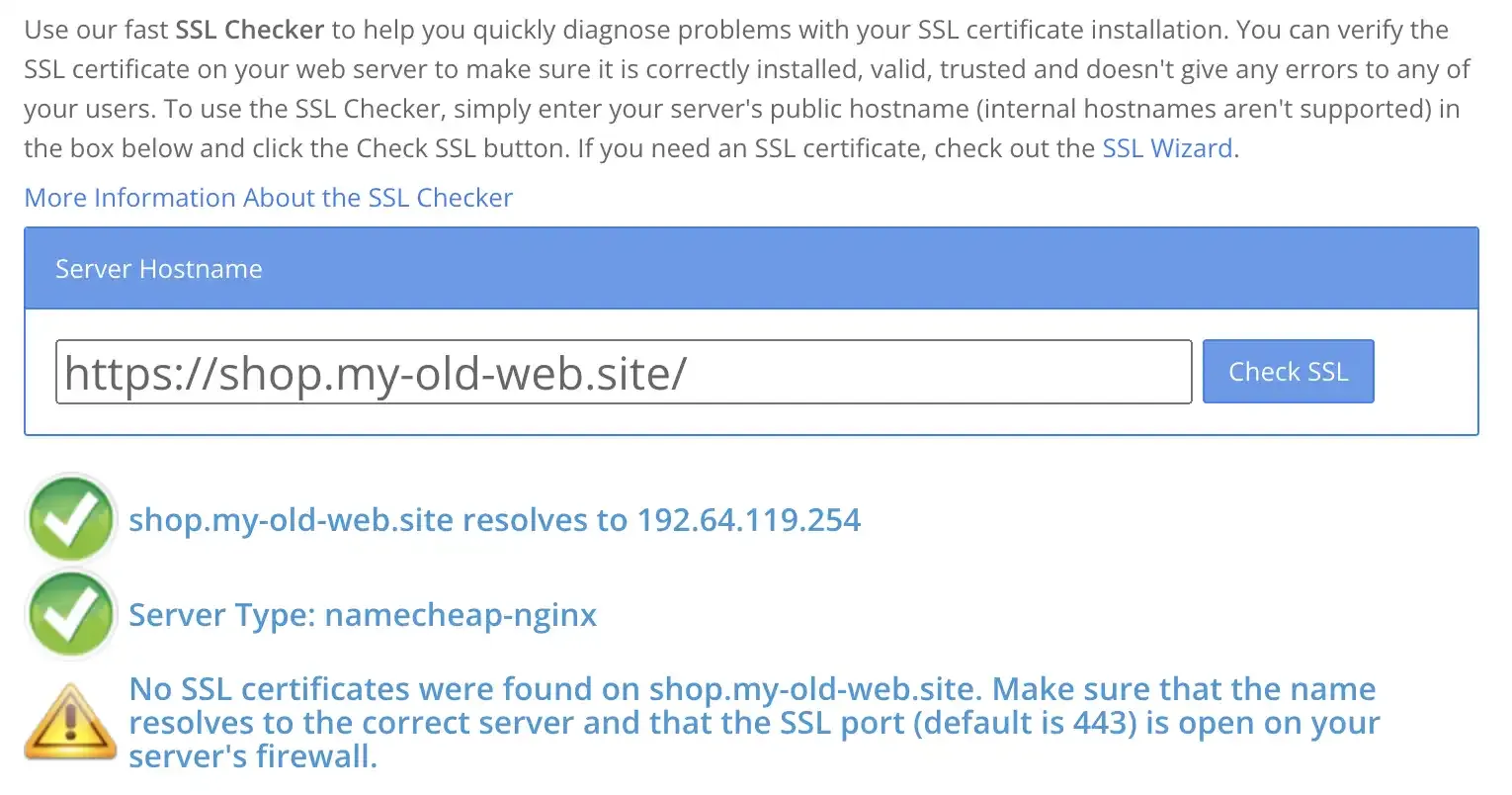
Namecheap doesn’t provision an SSL certificate for your domain when using DNS-based redirects. An SSL test confirms there’s no certificate:
This means:
- Visitors using HTTPS see security warnings — most browsers now default to HTTPS
- Search engines flag insecure redirects — hurting SEO value transfer
- Trust is destroyed — “Your connection is not private” makes your brand look compromised
Since Chrome, Safari, and Firefox all prefer HTTPS by default, a wildcard redirect without SSL is effectively broken for the majority of your traffic.
No per-subdomain control
Namecheap’s wildcard redirect is all-or-nothing. Every subdomain goes to the same destination. You can’t route blog.example.com to one place and shop.example.com to another — it’s a single destination for everything.
If you need author-based subdomains, service-specific routing, or different destinations per subdomain, Namecheap can’t help. You’d need a hosting package with Apache/Nginx configuration, which requires technical expertise most users don’t have.
Domain-Forward.com: Wildcard Redirects With HTTPS That Actually Work
Domain-Forward.com solves both problems with Namecheap’s wildcard redirects:
- Automatic SSL certificates for all subdomains — including wildcard subdomains
- HTTPS works immediately — no manual certificate management
- Per-subdomain routing on paid plans — send different subdomains to different destinations
- Path forwarding — preserve URL paths during redirect
- Analytics — see which subdomains get the most traffic
- Free plan for up to 5 domains
Step 1: Create an Account
First things first, you need to create an account, which is pretty straightforward.
Step 2: Add your domain to Domain-forward.com
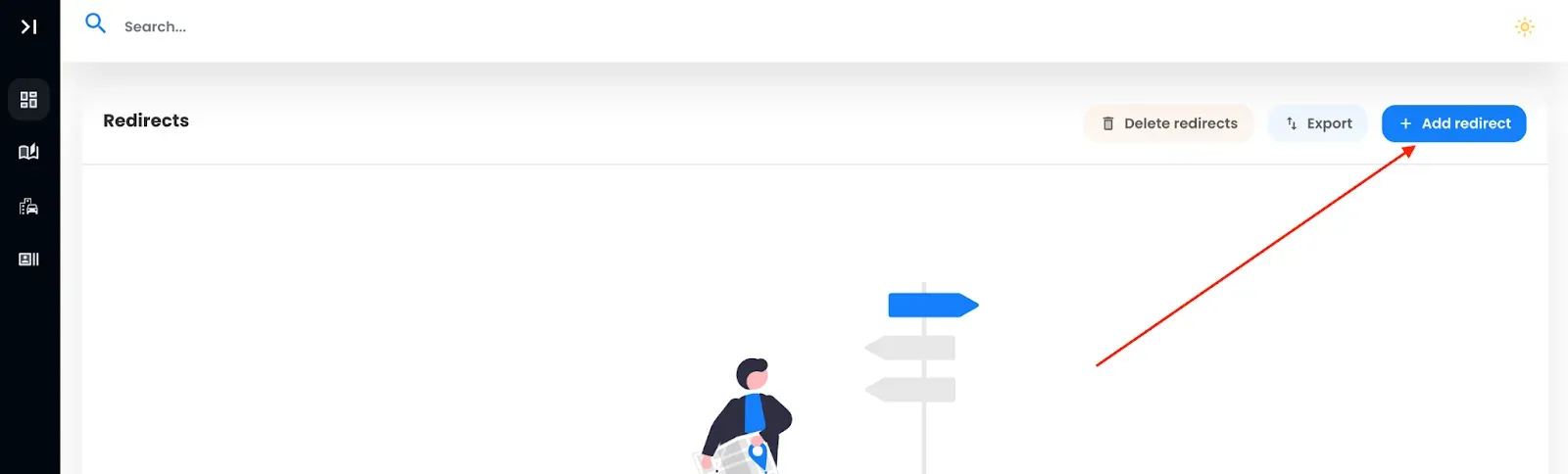
After successfully creating an account, it’s time to add the domain you’d like to redirect. To do that, click on the option to Add Redirect.
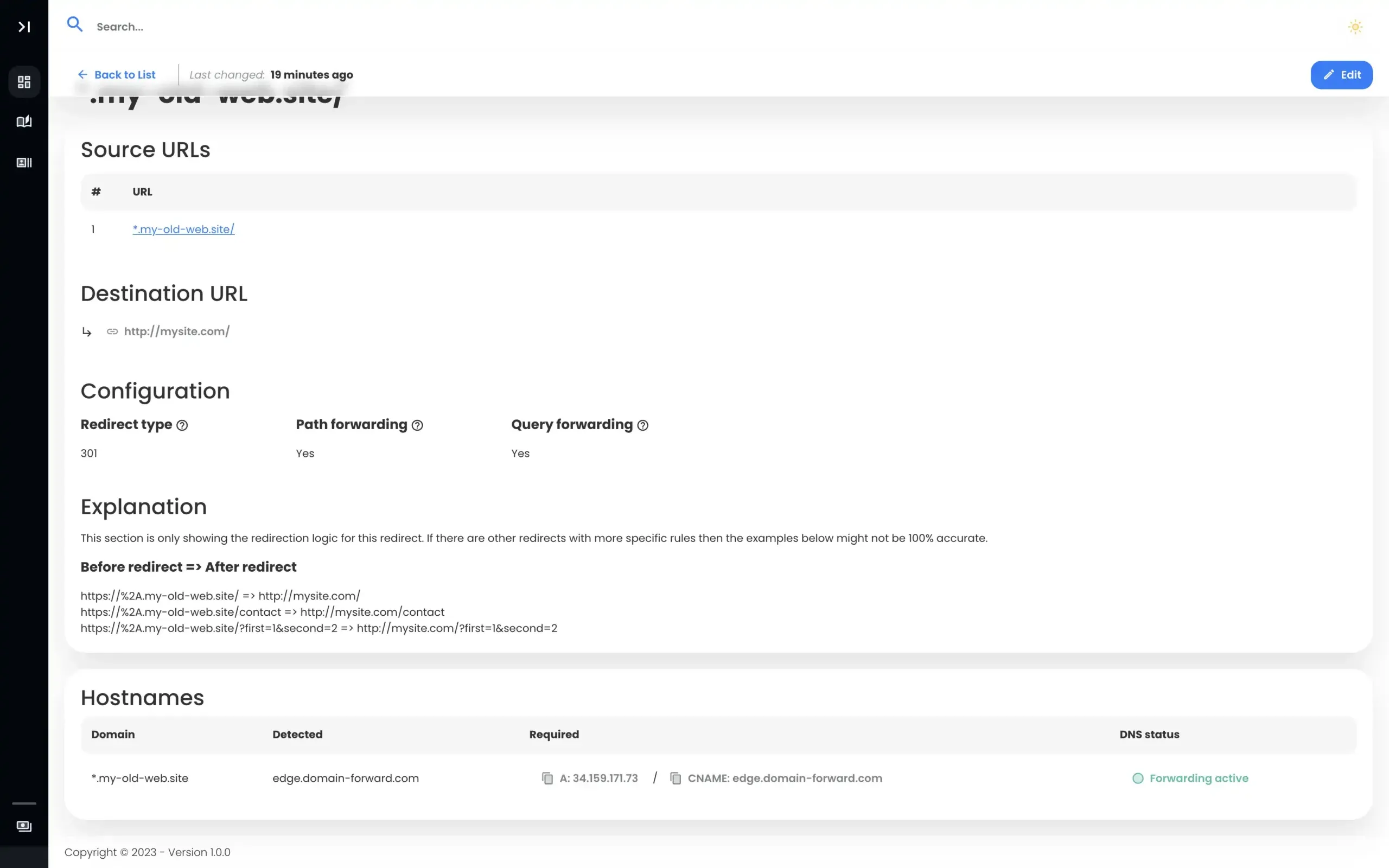
Since we already have a domain with Namecheap, “my-old-web.site,” we will add the wildcard version of the domain to the Source URL field. Also, we need to set the Destination URL, i.e., where we want to forward to. In our case, we want to forward all of the traffic to our new site, mysite.com.
If you have matching source paths (for example, both sites have a /contact page) for your pages also at your destination then you can leave “Path forwarding” on. If you want all of the traffic to be sent to the homepage, then leave it off.
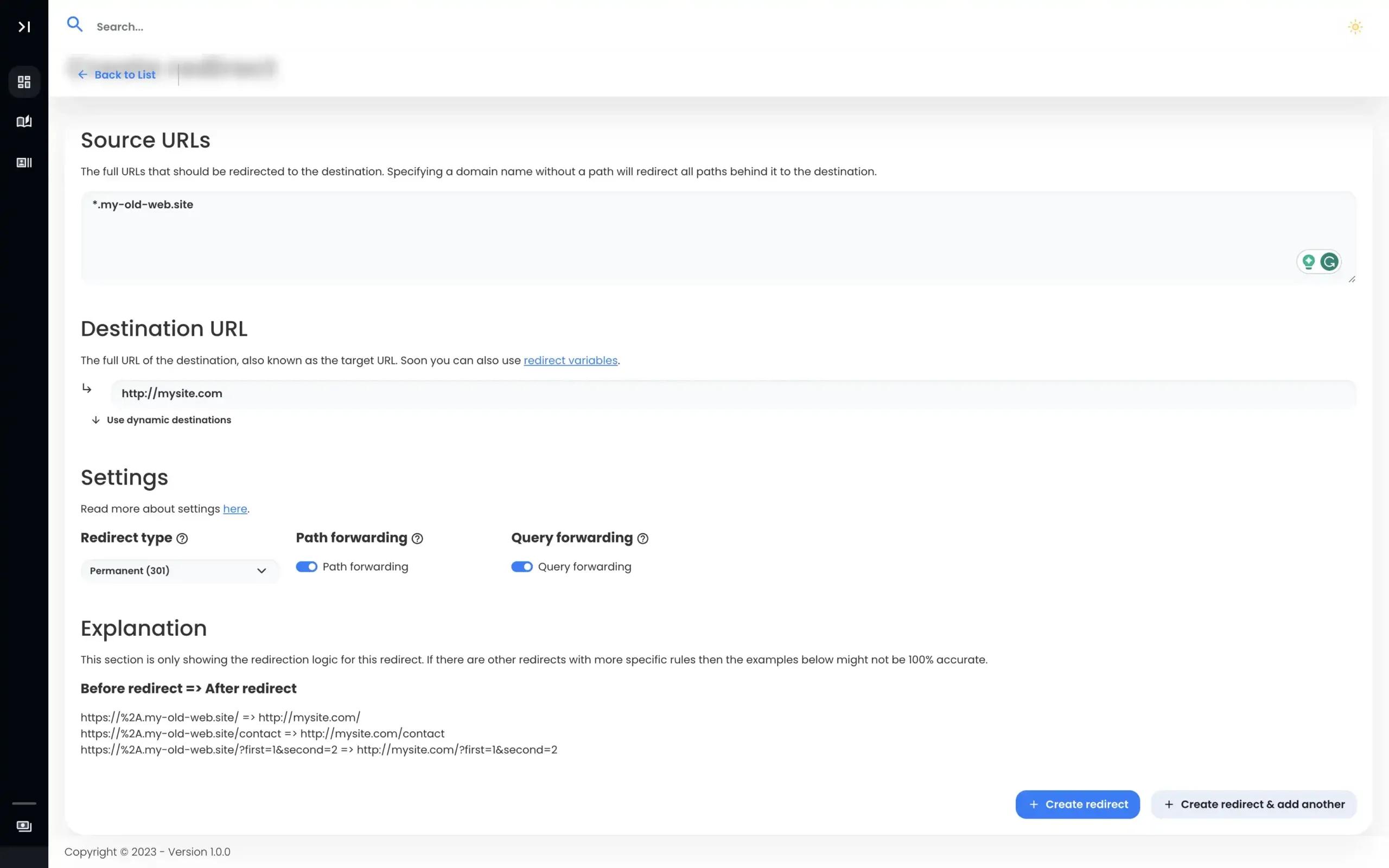
With all this information entered, we need to go ahead and create our redirect using the button below.
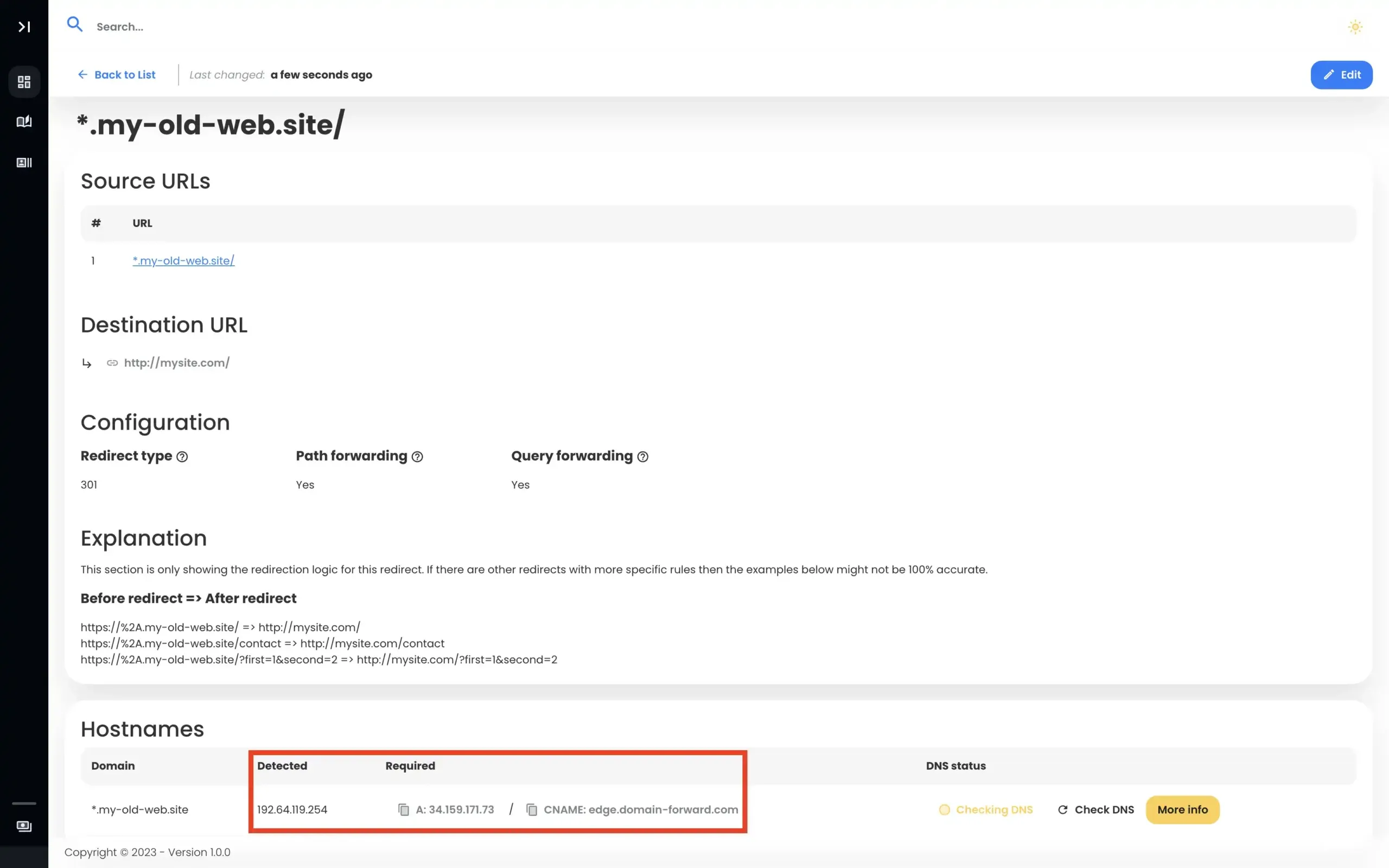
Note: After creating the redirect, you’ll notice the DNS checking as detected, and the required values are different. We need to tweak that. If no values are shown, try clicking “Check DNS” and see if the old value shows up.
Step 3: Head over to Namecheap
To complete our domain redirect using Domain-Forward, we need to head to Namecheap to tweak the DNS changes.
So log in to your Namecheap account, navigate to your Dashboard, and select the option for Manage for the domain you want to redirect.
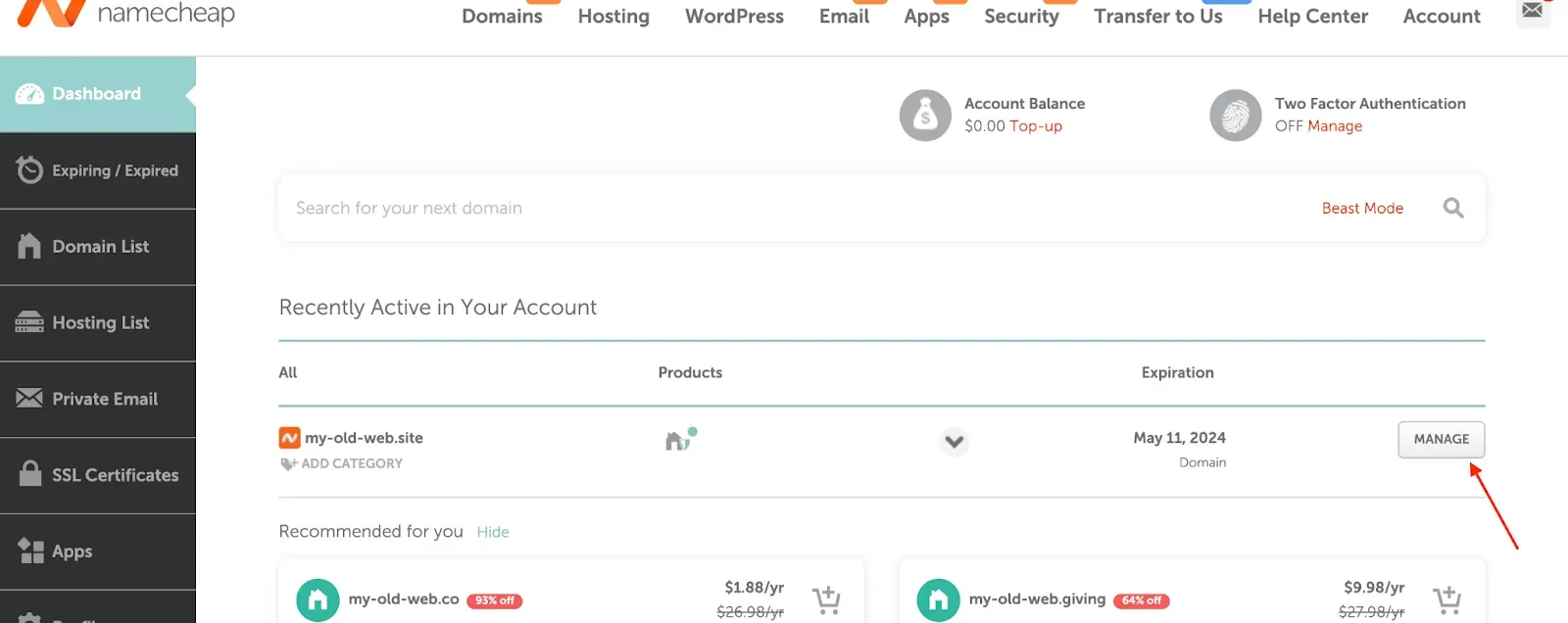
When the domain details page loads, select the option for Advanced DNS
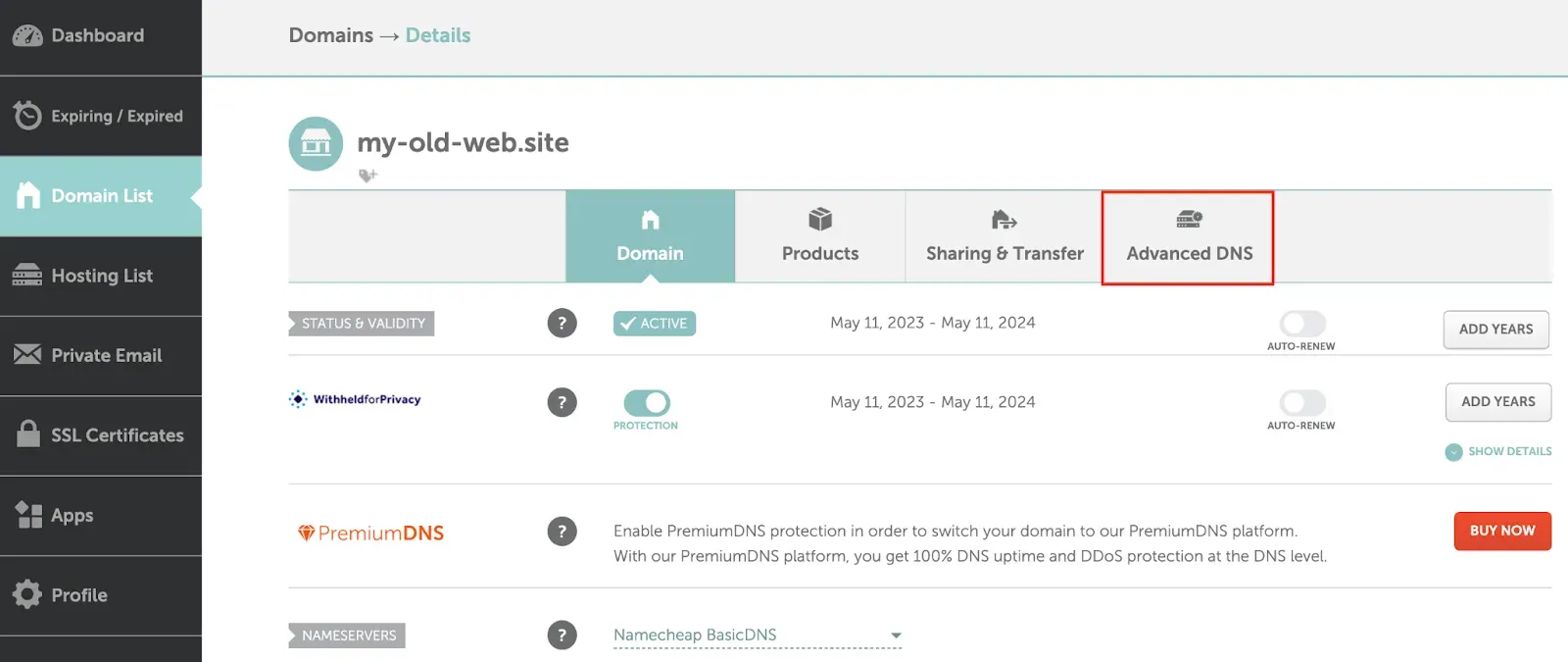
Step 4: Change DNS settings
Now, it’s time to tweak our DNS settings. If you have previously set up a URL redirect, you need to ensure you remove those records.
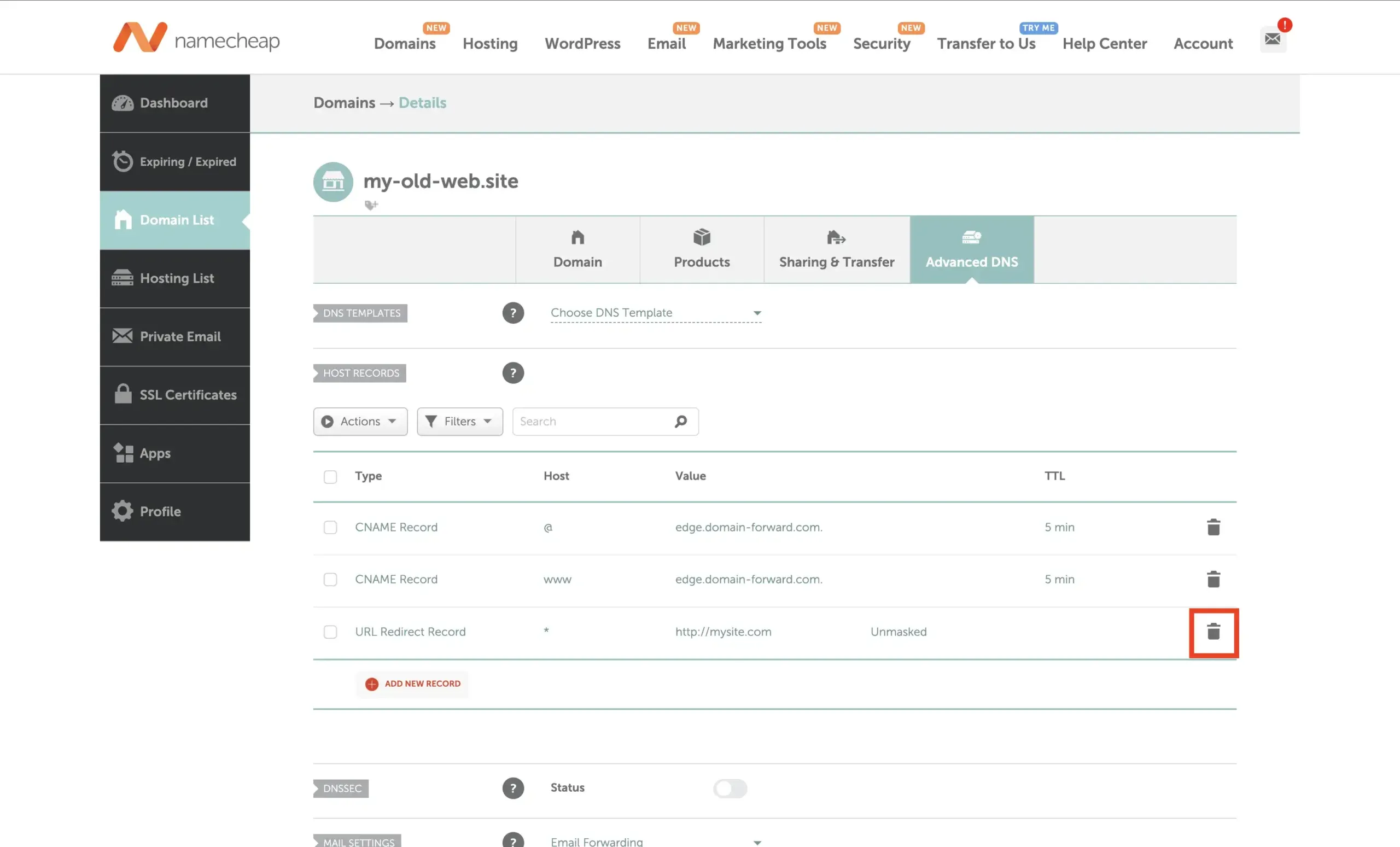
After deleting any previous redirects you have, click on the option for ADD NEW RECORD.
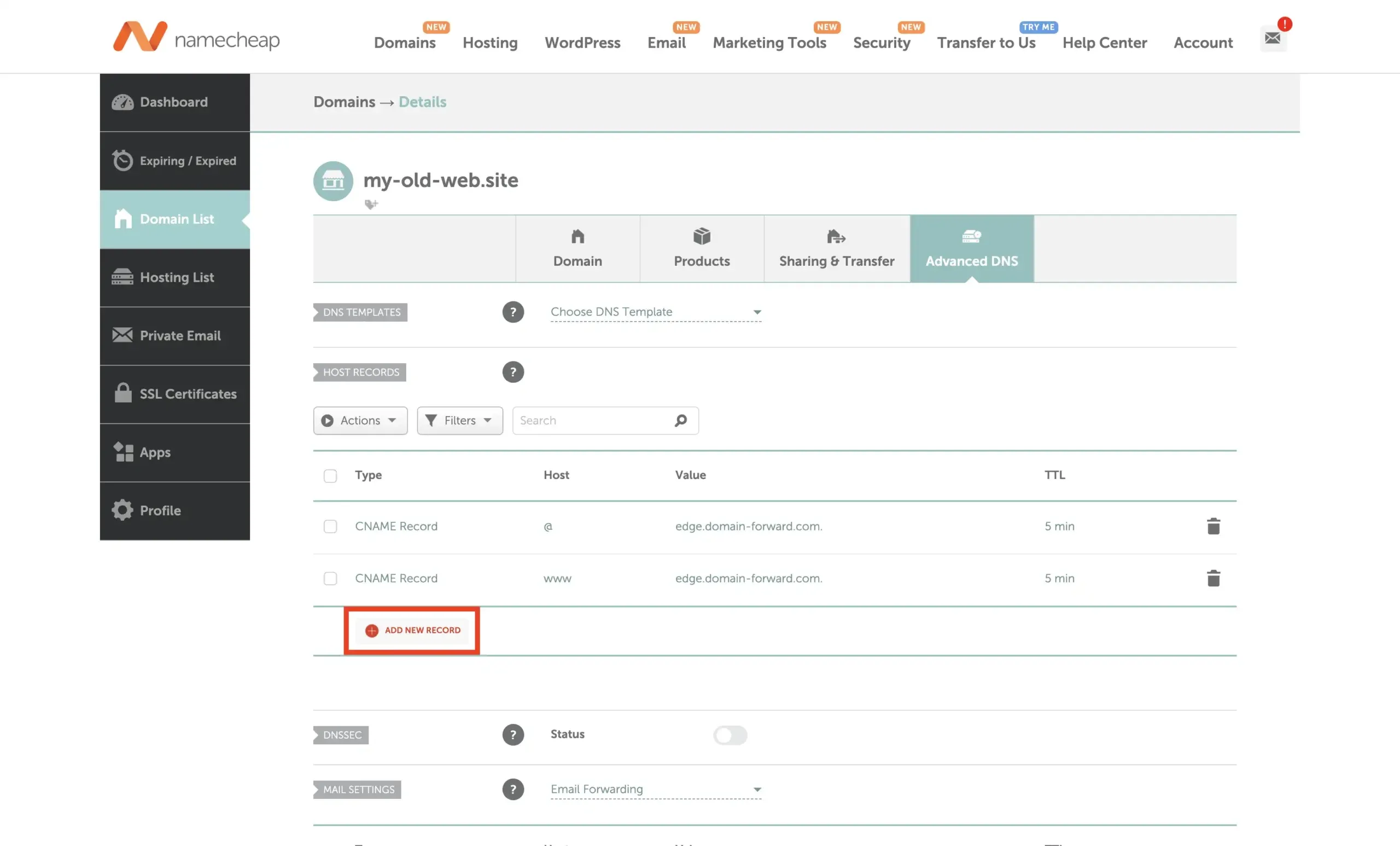
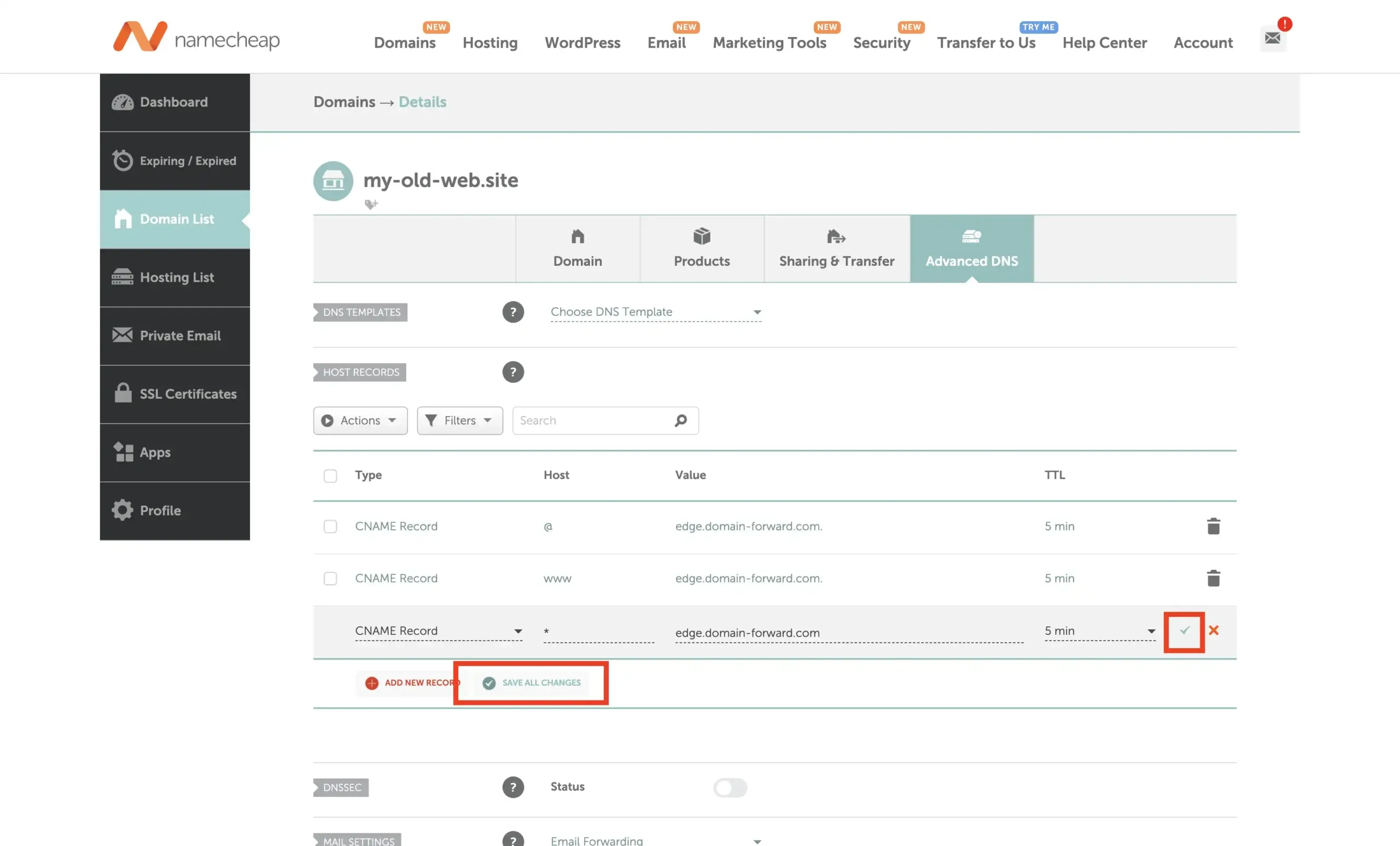
Select the Type ‘CNAME Record and enter * as Host with edge.domain-forward.com as Value. Please check that this is the value that is also provided for you in the Domain Forward app before you configure it like that. IP entries work as well, but we have opted for CNAME in this case.
After providing all the necessary information, click on “Save all changes” or on the green checkmark at the end of the row.
Step 5: Verify DNS At Domain-Forward.com
With our DNS changes now tweaked from the Namecheap backend, we only need to wait for a short while for the changes to be effected. Everything should be done in a few minutes or latest in a few hours depending on the old TTL set on those records. You can try clicking on “Check DNS” to have it update the entries in real-time.
Here is what it should look like after the changes have been detected by Domain Forward.
Step 6: Verify Redirect Using Online Tools
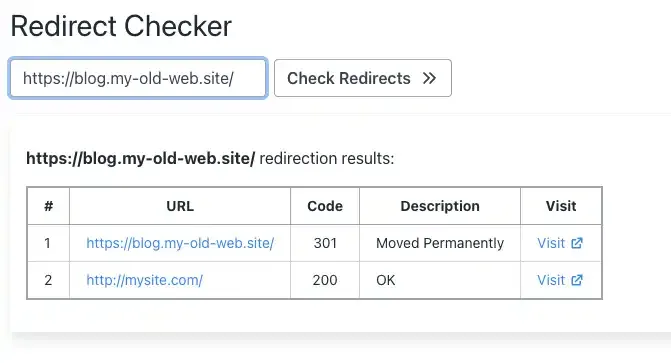
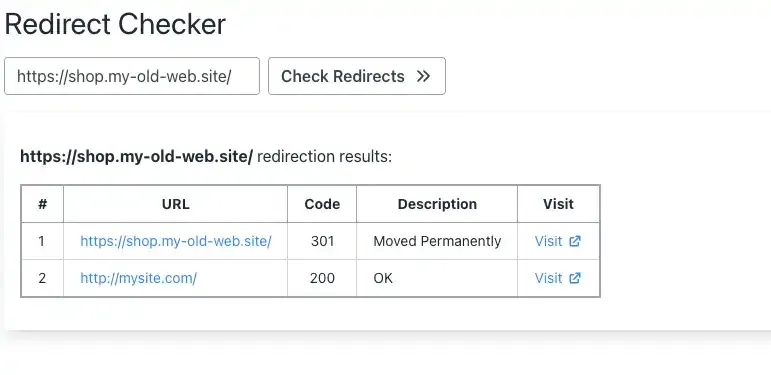
Now that we have configured the domain and the DNS entries as well, we can check if the redirection actually works. Below are images that are taken from an online “redirect testing tool” and it does confirm that our redirection works correctly.
Namecheap vs Domain-Forward.com for Wildcard Redirects
| Feature | Namecheap Wildcard | Domain-Forward.com |
|---|---|---|
| HTTPS support | No | Yes (automatic SSL) |
| Per-subdomain routing | No (all-or-nothing) | Yes |
| Path forwarding | No | Yes |
| Analytics | No | Yes |
| SSL certificate management | N/A | Auto-provisioned & renewed |
| Price | Free (HTTP only) | Free plan (5 domains) |
For standard (non-wildcard) Namecheap redirects, see our Namecheap domain redirect guide. Not sure what type of redirect you need? Check our guide to URL forwarding and redirect types. You can verify your setup with our redirect tester tool.
Using a different registrar? We have guides for GoDaddy, IONOS, and Hostinger.
Stop Losing Subdomain Traffic to Security Warnings
Every subdomain visitor who hits HTTPS and sees a security warning is a lost visitor — and lost SEO value. Namecheap’s wildcard redirects don’t support HTTPS, and that’s not going to change because it’s a fundamental limitation of their DNS-based redirect feature.
Domain-Forward.com gives you wildcard redirects with automatic HTTPS, path forwarding, and analytics. Setup takes 5 minutes. Free plan available. Your email stays working — only DNS web traffic records change, not MX records.