

TL;DR: Domain.com doesn’t provide automatic HTTPS for forwarded domains. Use Domain-Forward.com (free plan) to get working redirects with automatic SSL, proper 301 redirects, and analytics. Update two DNS records and you’re done in 5 minutes.
You have a domain on Domain.com and need to redirect it to another site. You log in, set up the forwarding, and it works over HTTP. But when visitors use HTTPS — which is what most browsers default to — they see a security warning.
Domain.com doesn’t provide automatic SSL certificates for forwarded domains. Like most registrars, their forwarding feature was built for an HTTP-first world that no longer exists.
This guide shows you how to get your Domain.com domain redirecting properly with HTTPS in 5 minutes.
Why HTTPS Matters for Domain Redirects
Without SSL on your forwarded domain:
- Most visitors see “Not Secure” warnings — Chrome, Safari, and Firefox default to HTTPS
- Search engines don’t transfer full SEO value through insecure redirect chains
- Trust is damaged — security warnings make your brand look compromised
- Some browsers block HTTP entirely — HSTS preload lists prevent non-HTTPS access
How to Redirect Your Domain.com Domain With HTTPS
Since Domain.com’s native forwarding doesn’t include SSL, the simplest solution is Domain-Forward.com:
- Free plan for up to 5 domains
- Automatic HTTPS with SSL certificates that auto-renew
- 301 permanent redirects for proper SEO transfer
- Analytics showing redirect traffic
- No domain transfer needed — just DNS changes
Step 1: Register an account
The first thing you want to do is sign up for an account, which only takes a few minutes to complete.
Step 2: Add your domain to Domain-Forward.com
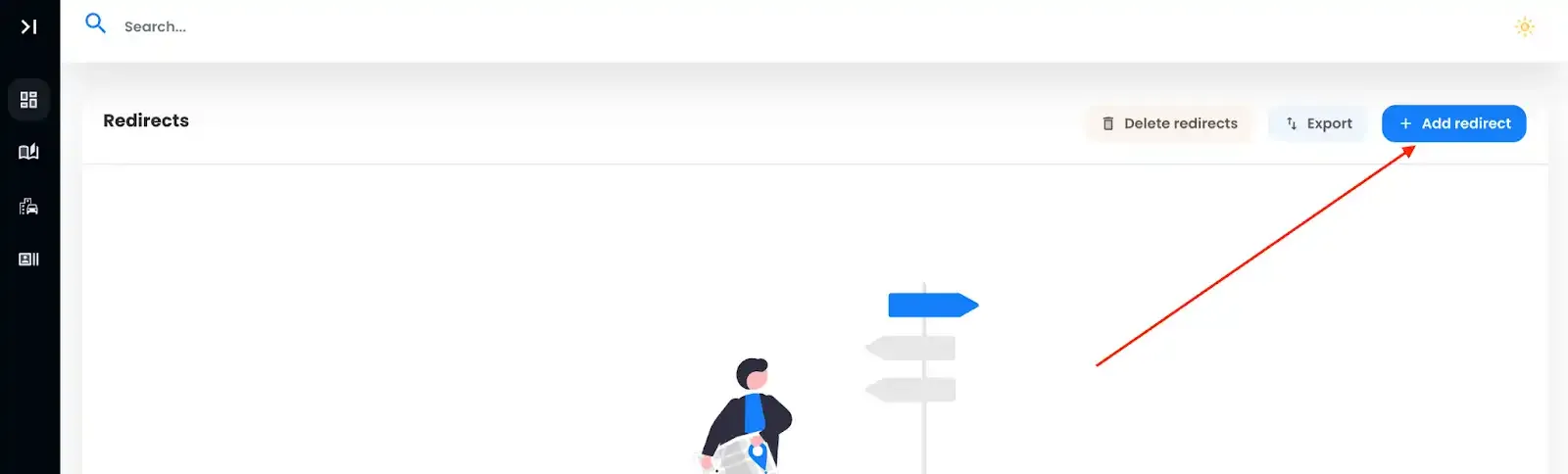
Once you have registered an account, it’s time to add the domain you’d like to redirect. All you need to do is click on the option for “Add Redirect.”
Since we already have a domain with domain.com called ‘my-old-domain.xyz’, we need to integrate it into the Source URL field. To make things hassle-free for your website visitors, we recommend adding both ‘www’ and the non-www version.
And that’s not all. We must also set the Destination URL, where all the magic happens – your forward-to spot.
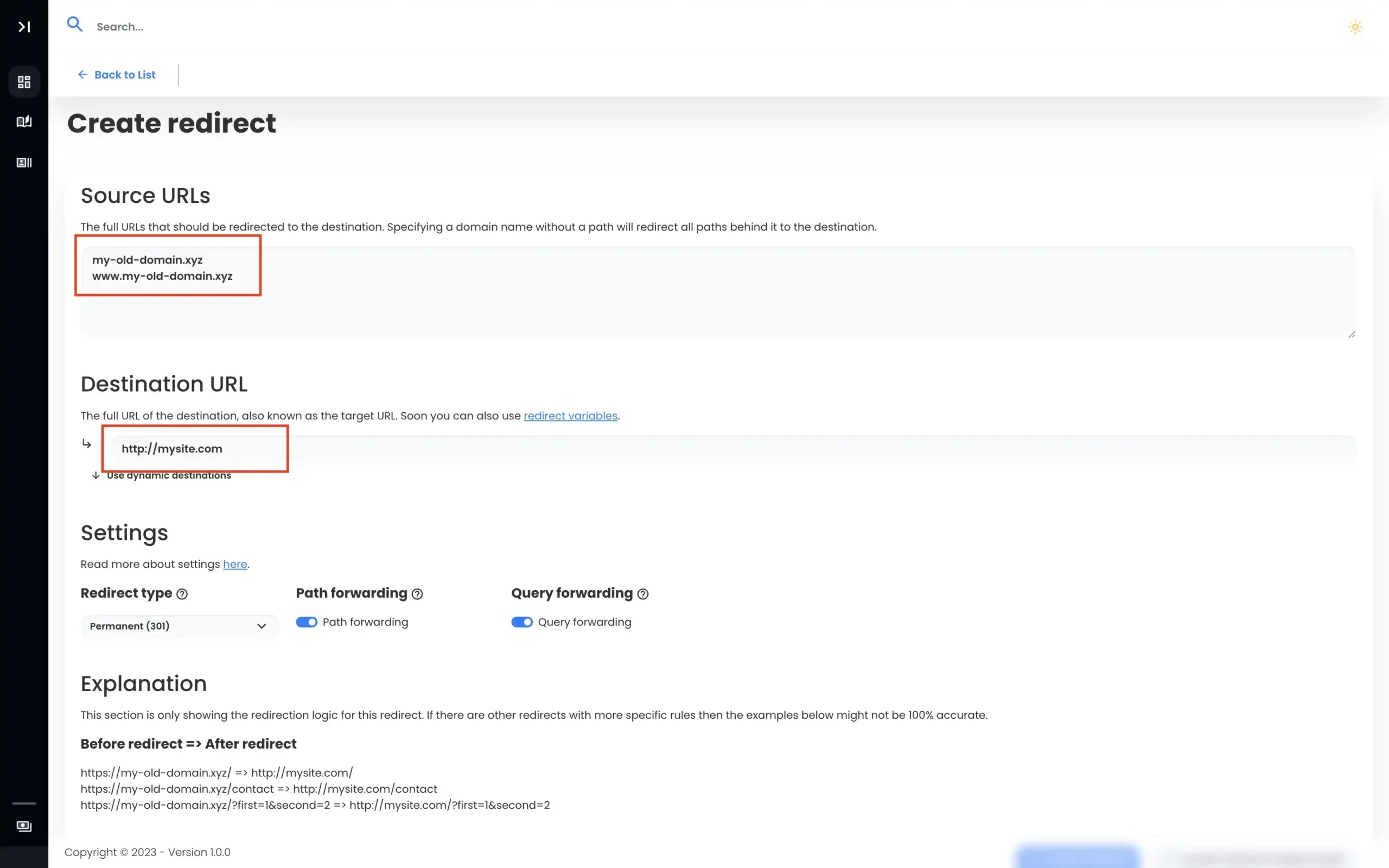
With our Source URLs and Destination URL now set, all we need to do is create our redirect. We recommend you leave the redirect type as 301, but if you are unsure exactly what redirect type you need then here’s our basic guide about URL forwarding.
Note: After completing the domain redirect, you’ll notice the DNS status as checking. We need to fix that.
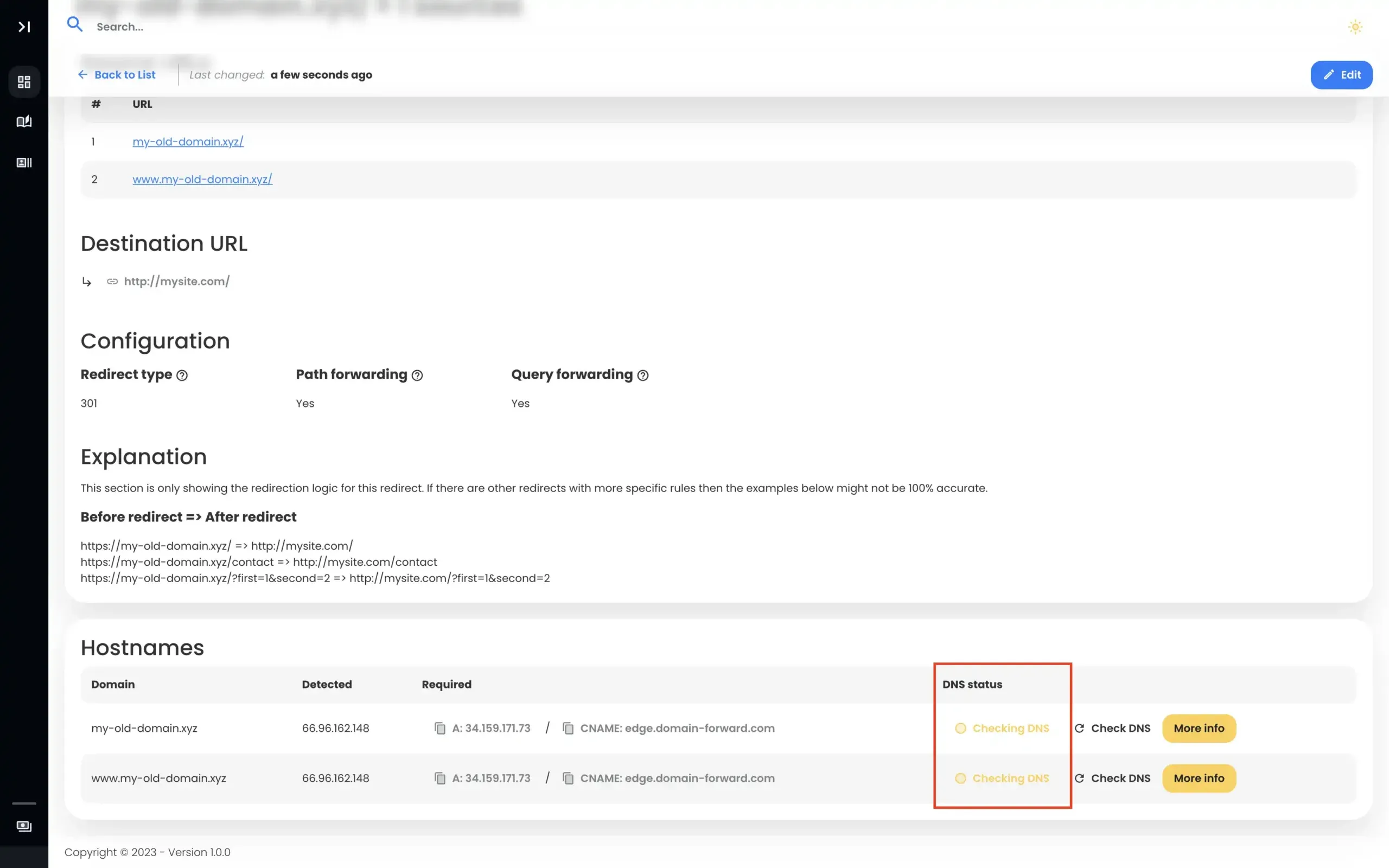
Step 3: Navigate to domain.com
To complete redirecting using Domain-Forward.com, we need to head over to domain.com to tweak DNS changes.
To do that, log into the domain.com platform.
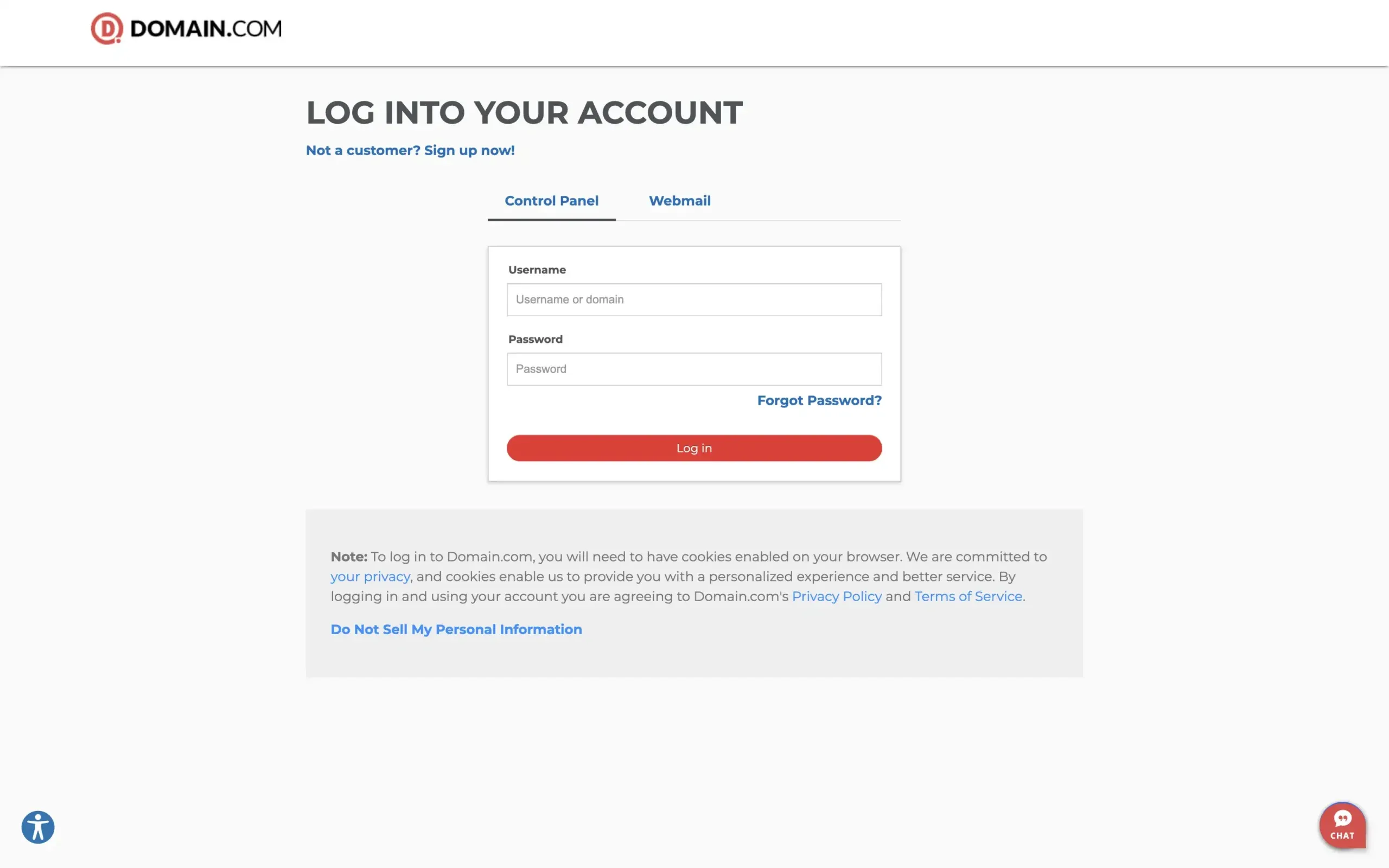
After logging in, we are shown the dashboard where we can adjust all of our settings regarding our domains on domain.com. Then choose the domain you would like to manage. If you only have one domain there, you’ll be redirected to the domain details right away. Next, click on “DNS & Nameservers” on the left sidebar.
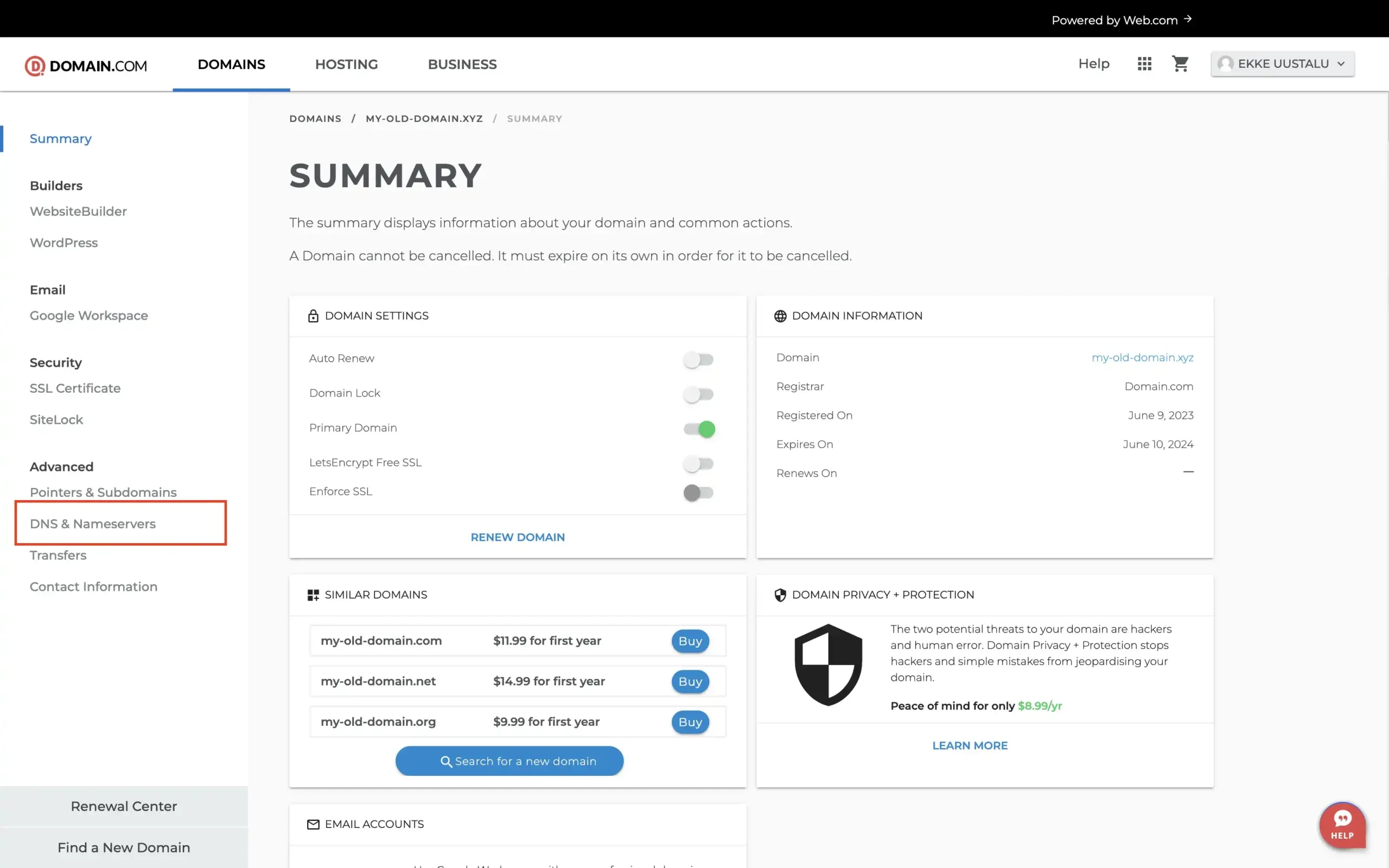
If you followed the steps exactly as we showed you, you should have a page that looks something like this:
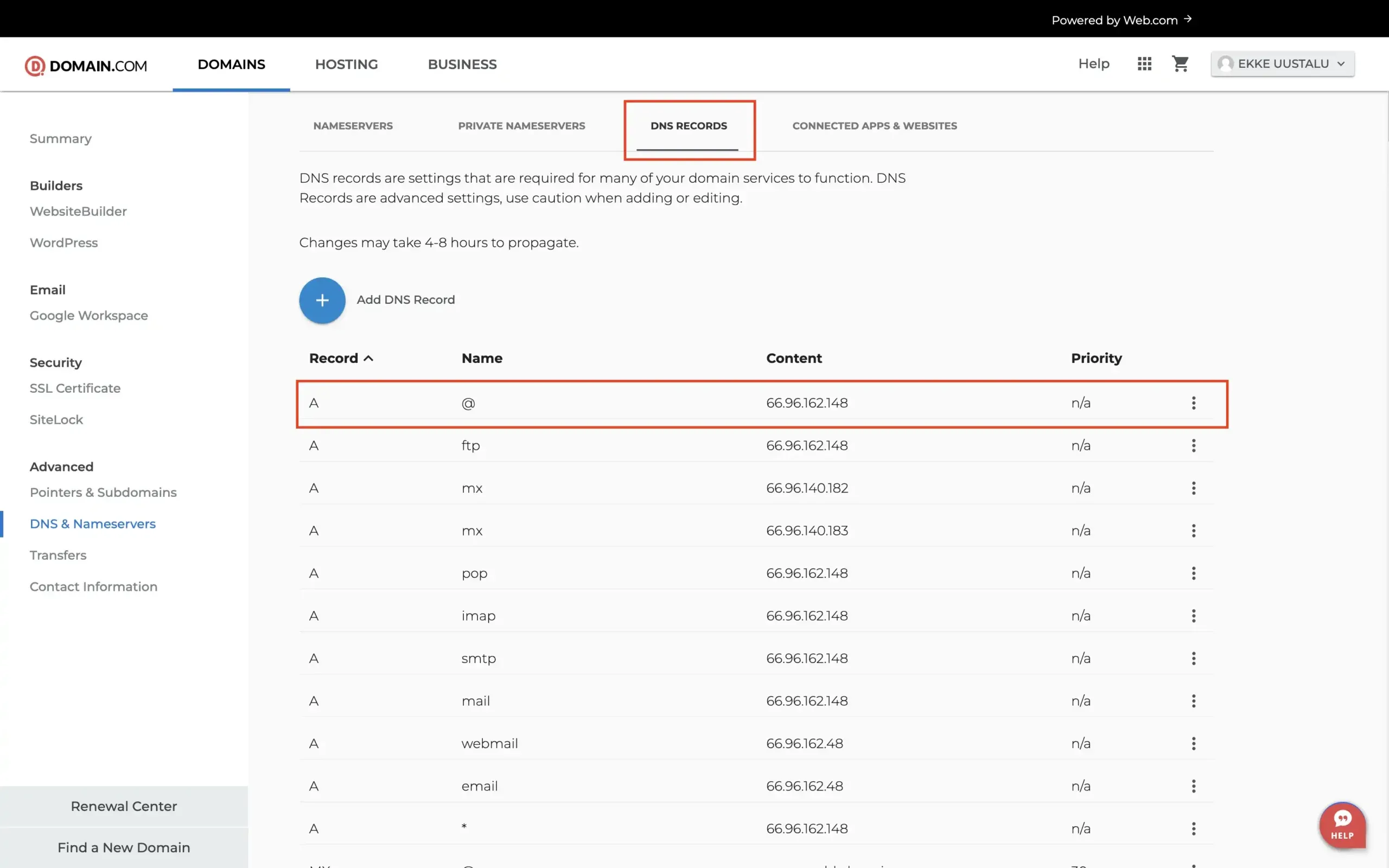
Step 4: Change the DNS
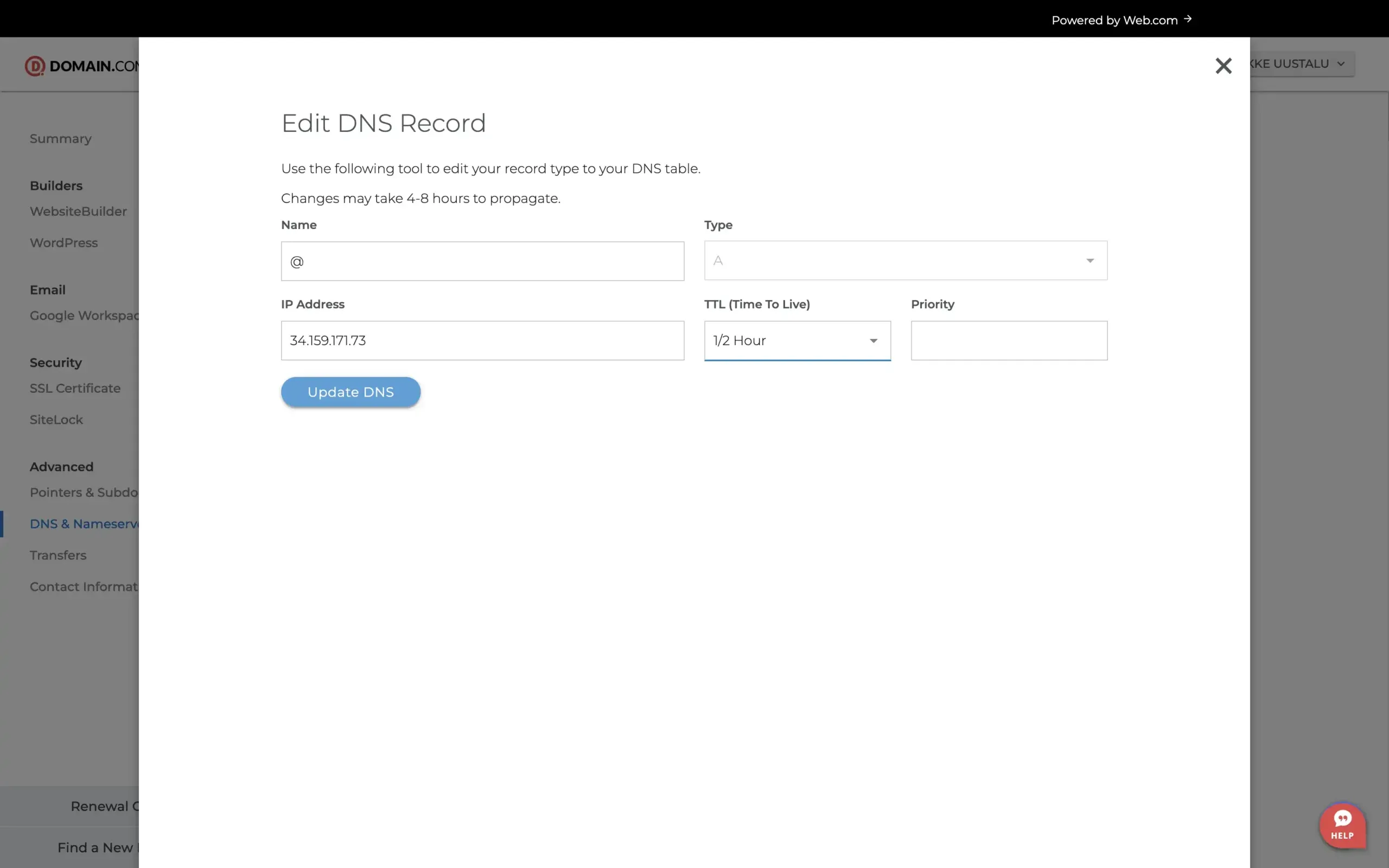
Now, let’s tweak our DNS settings. First, you want to click the three dots at the end of the @ domain A-type record. Here, you want to change the Value to 138.68.125.144 With that done, click Edit. You can change the TTL value to 1/2 Hour if you want the DNS changes to propagate slightly faster in the future.
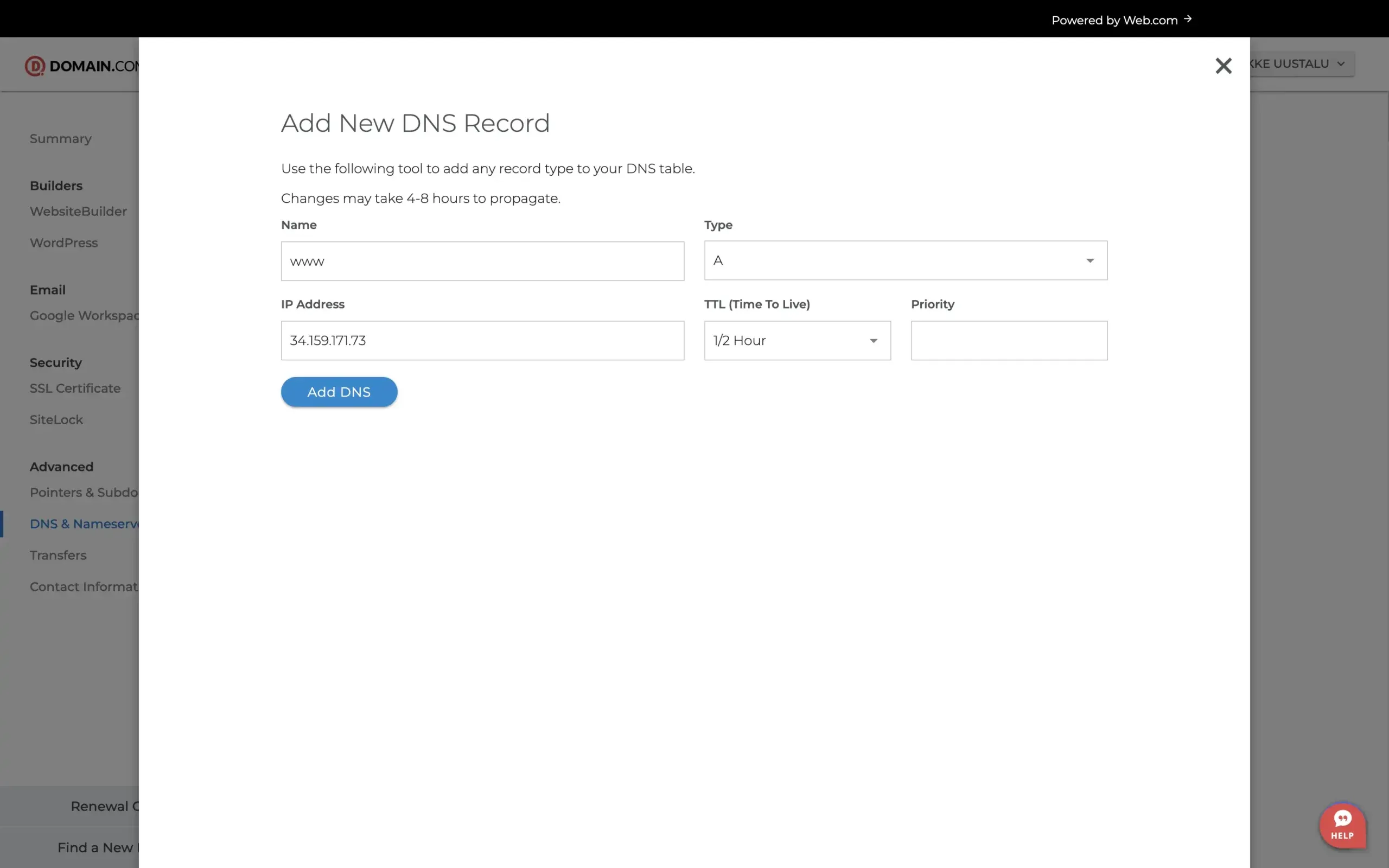
Next, we also want to add an entry for the www subdomain. Add the same IP as for the @ domain and optionally set the TTL to 1/2 Hour.
Now, that’s all we need to do here. Just so you know you did the right thing, it should look something like this:
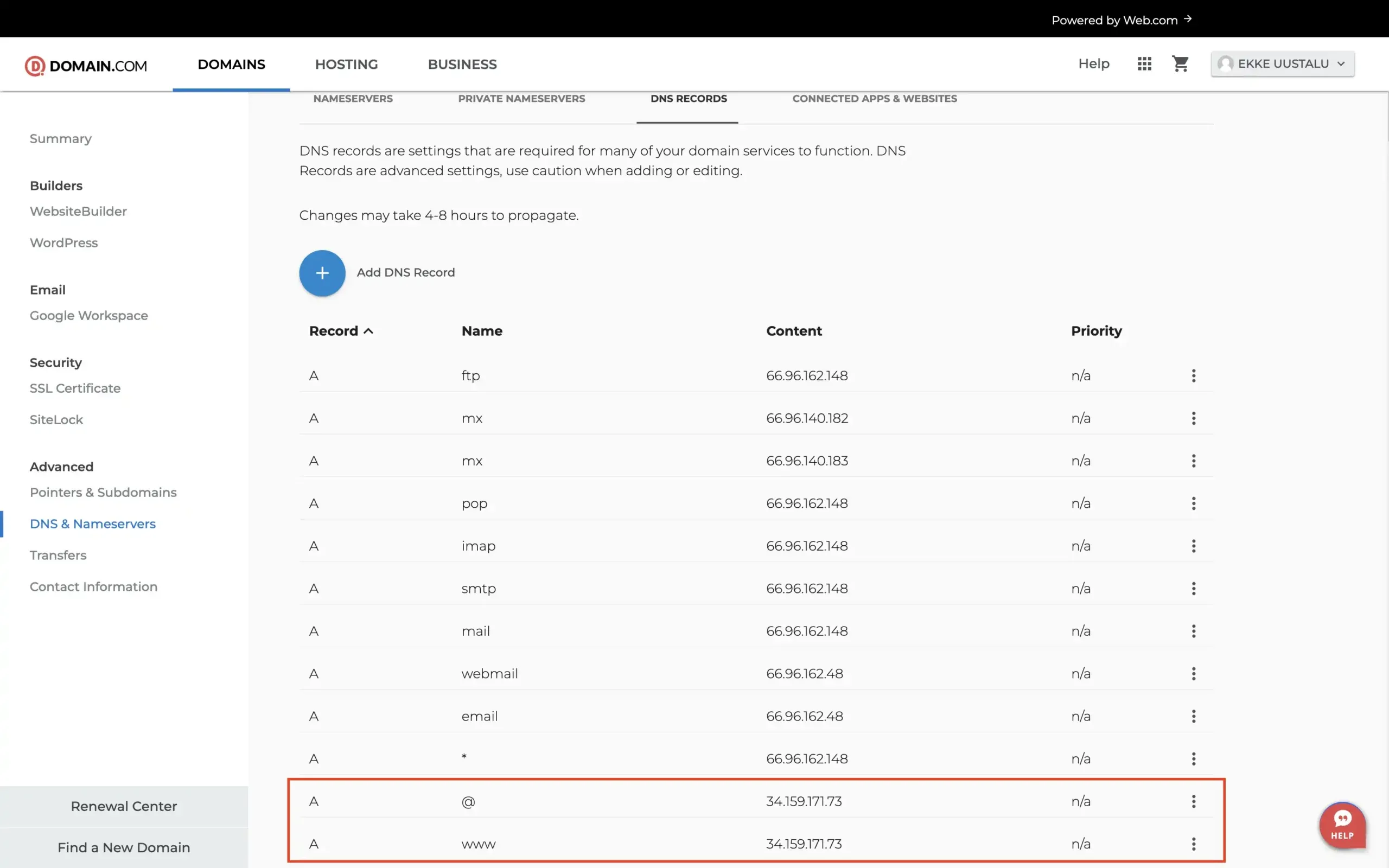
You might have some other records there as well, but you can leave them as is. Only if you run into some redirection issues should you consider debugging why it doesn’t work.
Step 5: Verify DNS changes at Domain-Forward.com
Once your changes have been effected on domain.com, head over to Domain-Forward.com to see if the DNS changes reflect there as well. In our testing, it took around 2 hours, but your mileage may vary.
Here is what ours looks like, showing that our DNS change at domain.com was successful.
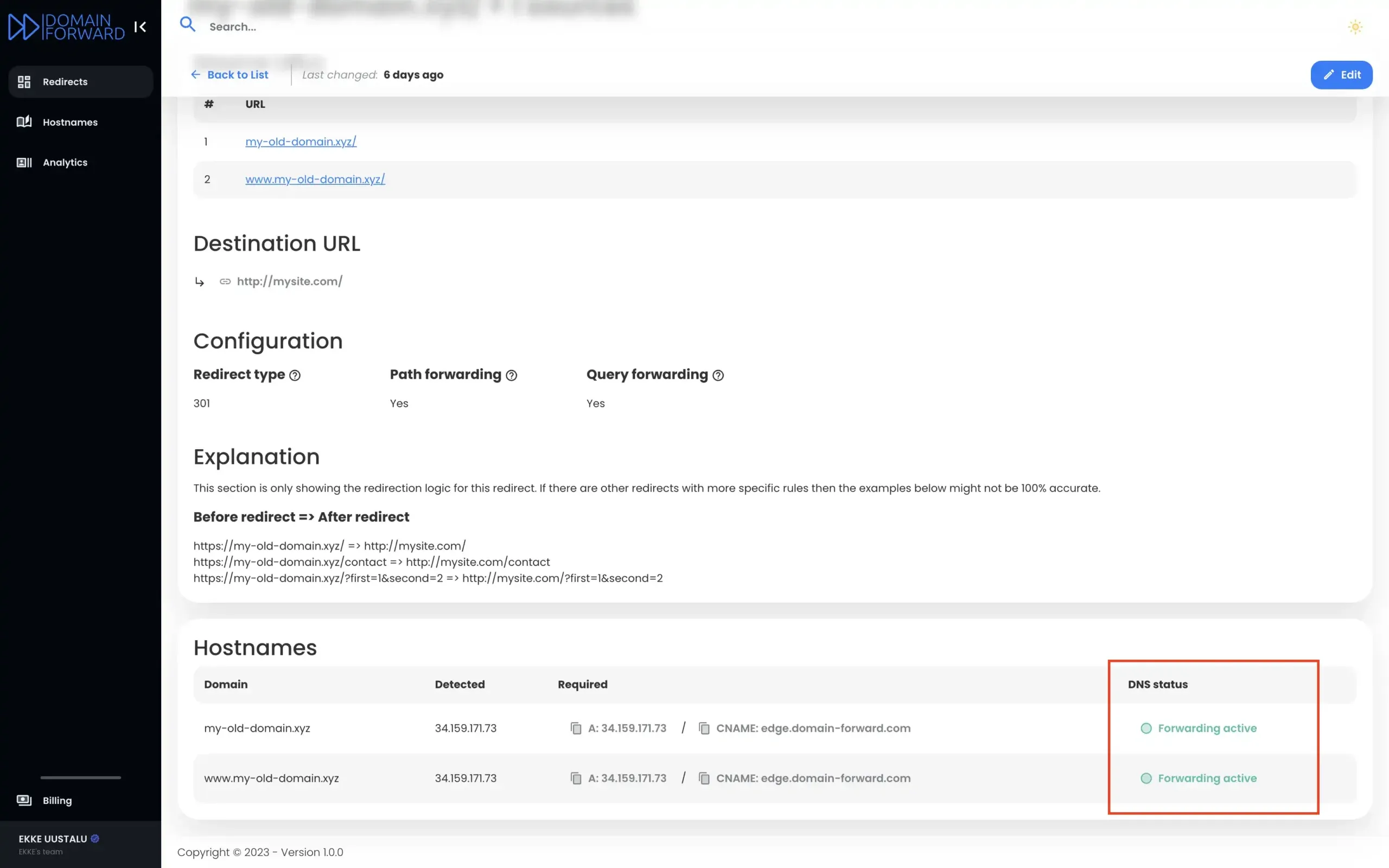
Note: The DNS change isn’t always instant. It can take an hour or even up to 48h for the changes to go live. So have some patience.
Step 6: Verify Redirect Using Online Tools
Now that we have set up the domain forwarding and the DNS entries, it’s time to check if the redirection is working correctly. Below is an image from an online “redirect testing tool,” confirming our redirection is functioning correctly.
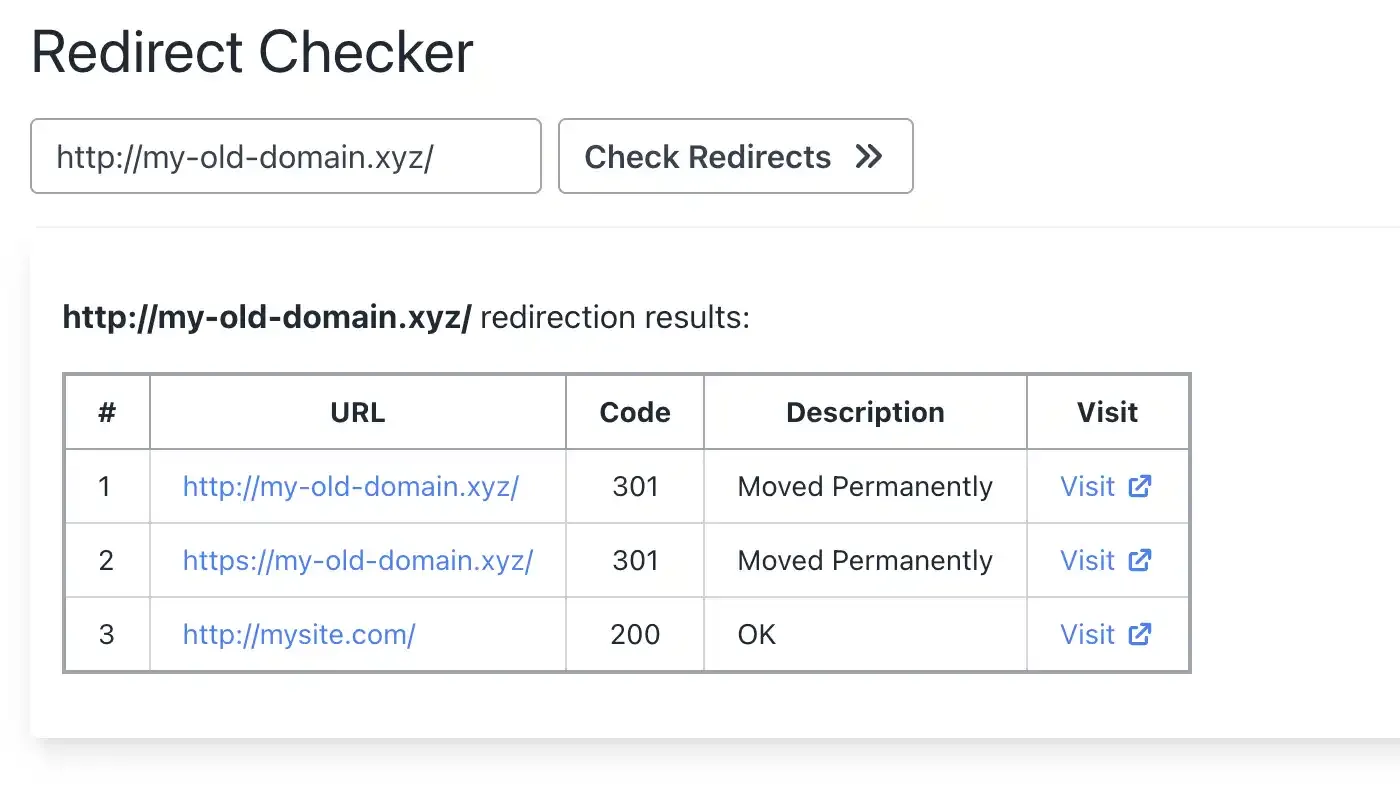
Domain.com Forwarding vs Domain-Forward.com
| Feature | Domain.com Forwarding | Domain-Forward.com |
|---|---|---|
| HTTPS support | No | Yes (automatic SSL) |
| SSL certificate | Not included | Auto-provisioned & renewed |
| 301 redirects | Limited | Yes |
| Analytics | No | Yes (clicks, geography, devices) |
| www + non-www | Manual setup | Handled together |
| API access | No | Yes (REST API) |
| Price | Included with domain | Free plan (5 domains) |
Not sure what type of redirect you need? Check our guide to URL forwarding and redirect types. You can also verify your setup works with our redirect tester tool.
If you’re coming from another registrar, we have similar guides for GoDaddy, Namecheap, IONOS, Porkbun, Name.com, and Squarespace.
Stop Losing Visitors to Security Warnings
Every HTTPS visitor to your Domain.com domain hits a security warning instead of being redirected. That’s increasingly everyone.
Domain-Forward.com gives you free HTTPS, proper 301 redirects, and analytics. Update two DNS records at Domain.com and your redirect works for all visitors — HTTP and HTTPS. Your email stays working — only A records change, not MX records.