

TL;DR: Google Cloud Run can redirect domains using the
morbz/docker-web-redirectDocker image. Free tier covers 2M requests/month, but setup requires Docker, Cloud Console, and DNS configuration. For a no-code alternative, Domain-Forward.com handles it in 5 minutes with free HTTPS.
This tutorial shows how to redirect traffic from one domain to another using Google Cloud Run. We’ll use the morbz/docker-web-redirect Docker image, which handles HTTPS domain forwarding redirection via Nginx.
Prerequisites:
Before proceeding with the tutorial, ensure you have:
- A Google Cloud account with the necessary permissions to create and manage Google Cloud Run instances.
What is Google Cloud Run?
Google Cloud Run is a fully-managed serverless platform from Google. It runs applications in Docker containers without infrastructure management. The free tier includes 2 million requests per month, which is more than enough for most redirect use cases.
What is morbz/docker-web-redirect?
morbz/docker-web-redirect is a Docker image built specifically for the purpose of redirecting HTTP/S traffic from one domain to another. This Docker image uses Nginx to perform the redirection.
Steps to Redirect the Traffic
(OPTIONAL) Test the Docker Image Locally
Before you can test the image, you need:
- Docker Desktop
- A terminal of your choice
If that’s done, pull the Docker image:
docker pull morbz/docker-web-redirectTest it locally:
docker run -p 8080:80 -e REDIRECT_TARGET="http://example.com" morbz/docker-web-redirectVisit :8080 in your browser — you should be redirected to http://example.com. Press Ctrl + C to stop the service.
Deploy to Google Cloud Run
Step 1: Creating the service
Create a new Cloud Run service in the Google Cloud Console. Navigate to Cloud Run using the top search.
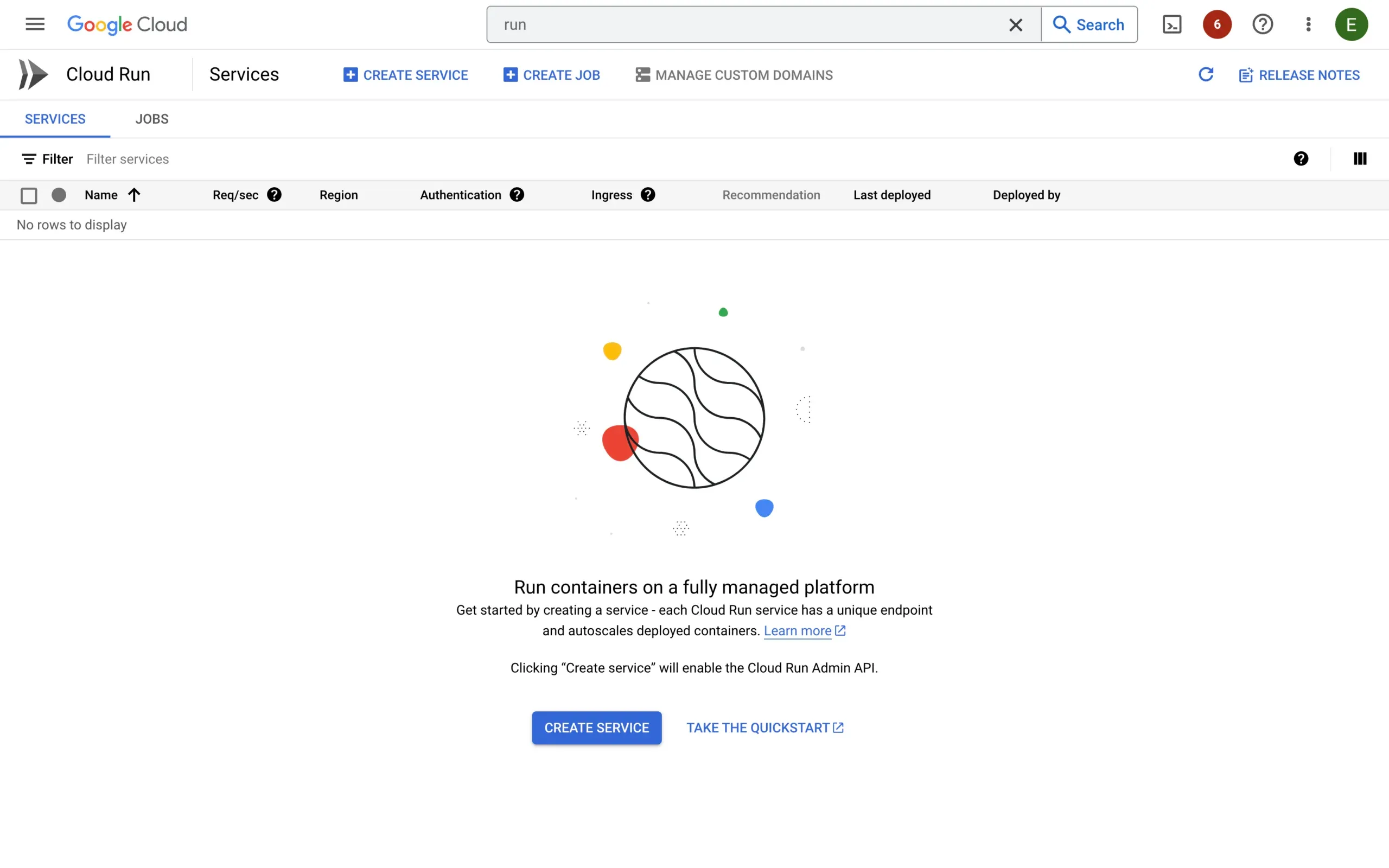
Click ‘Create Service’ and configure:
- Container image URL =
morbz/docker-web-redirect - Region = closest to your users
- Autoscaling -> Maximum number of instances =
10
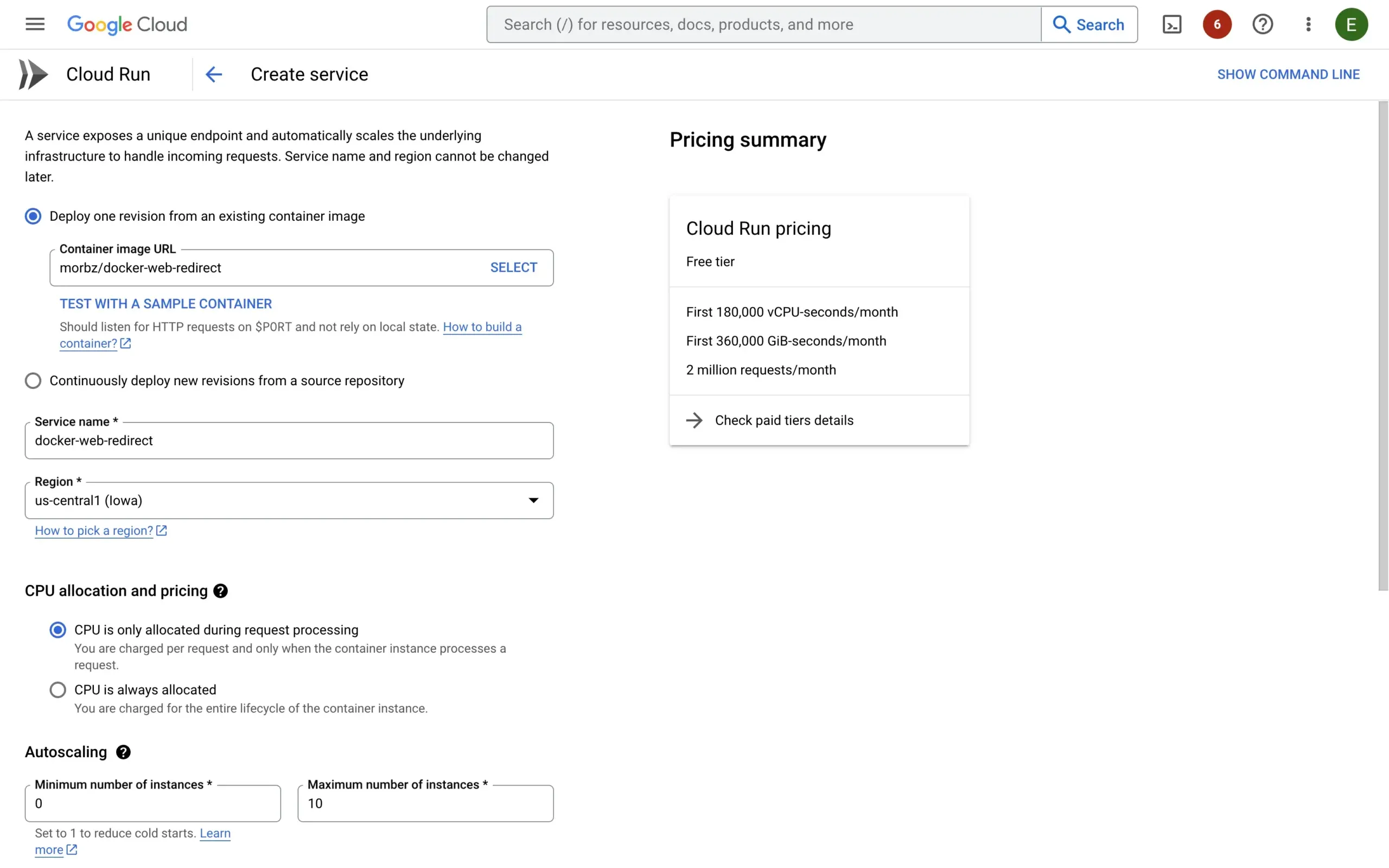
When you scroll down, check Allow unauthenticated invocations. Without this, public traffic can’t reach the service.
Step 2: Creating the service – configure environment variables
Set the REDIRECT_TARGET variable to your destination URL.
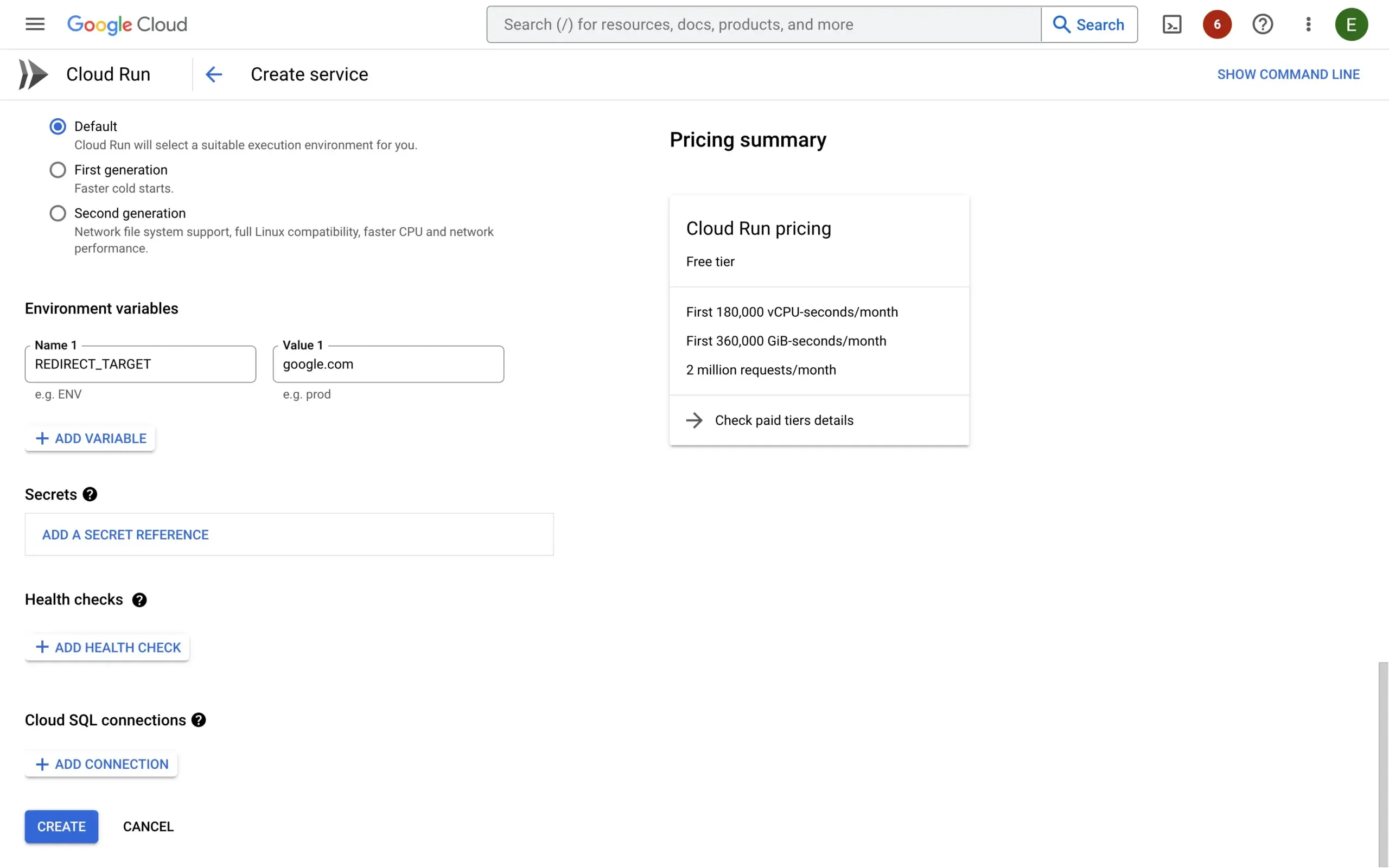
Understanding Environment Variables
The Docker image uses two environment variables:
REDIRECT_TARGET: This is the URL to which the traffic will be redirected.REDIRECT_TYPE: Controls the HTTP status code. Default is 301 (permanent). Set toredirectfor 302 (temporary).
Example — permanently redirect to “https://mynewsite.com”:
REDIRECT_TARGET="mynewsite.com"Step 3: Mapping a custom domain
Once created, the service is accessible via its auto-generated Cloud Run URL.
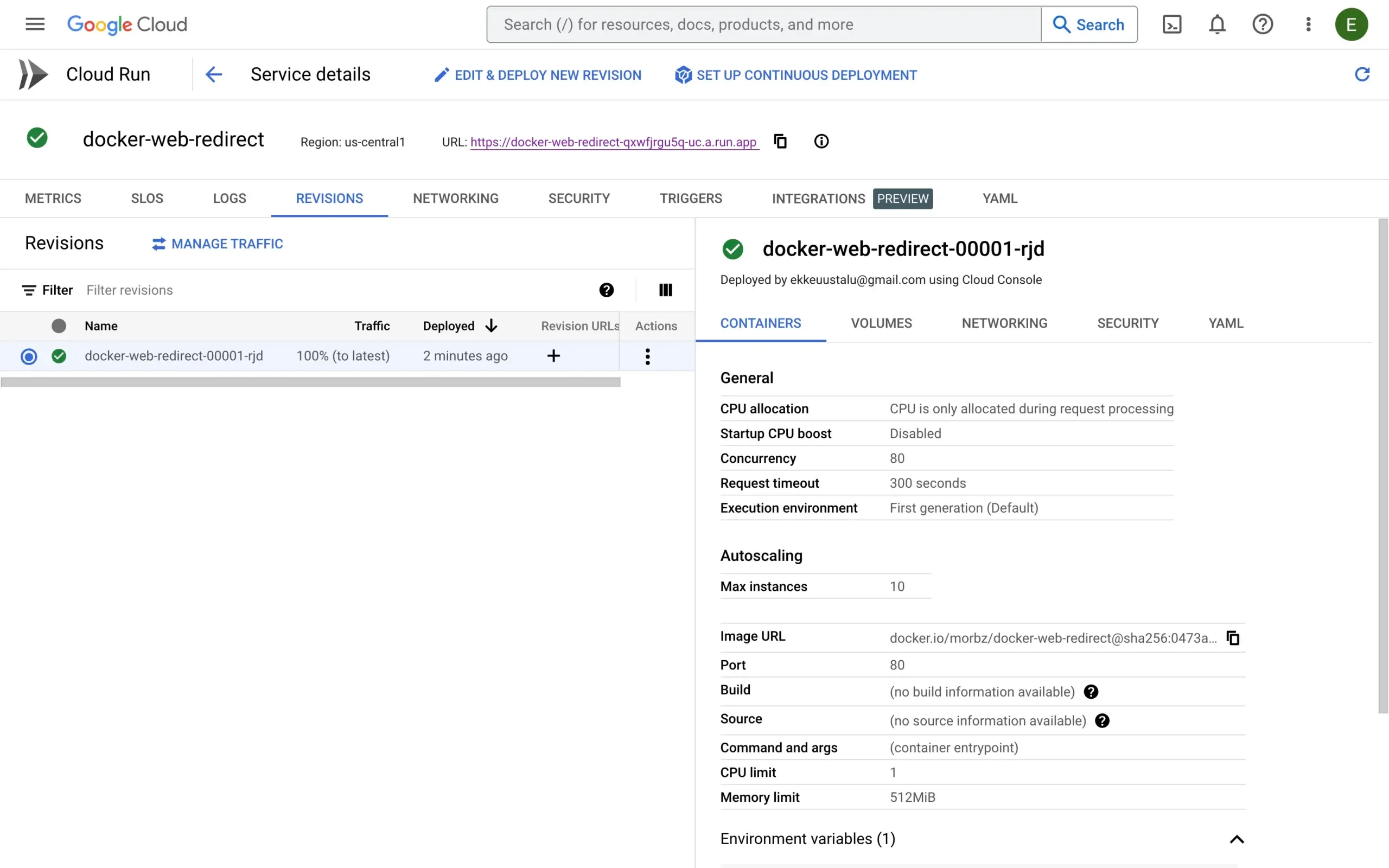
To redirect your actual domain, navigate back to the Cloud Run service list and click ‘Manage custom domains’.
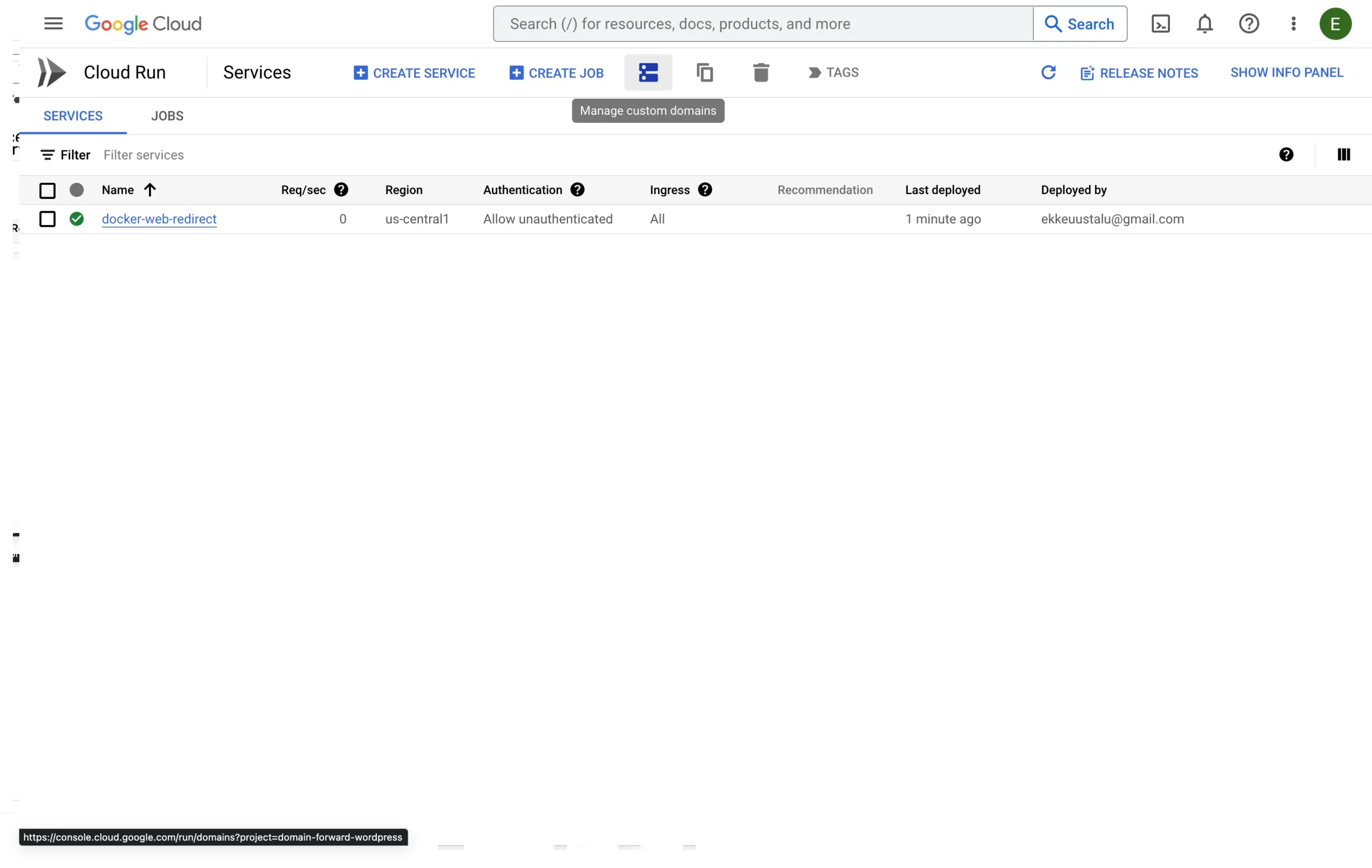
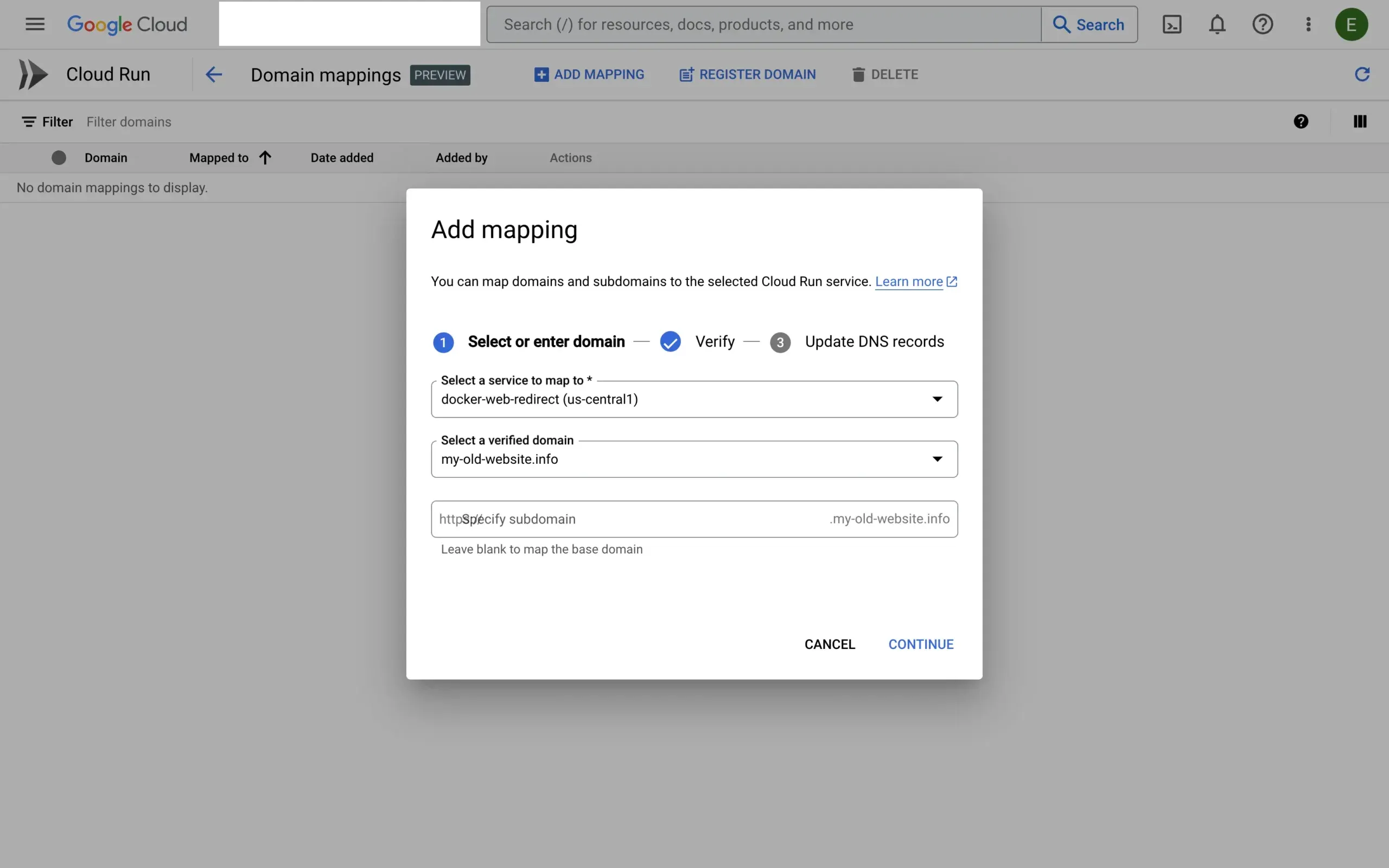
Click ‘Add mapping’, select your service, and choose your verified domain.
You may need to verify domain ownership via Google Search Console. Follow this verification tutorial if needed.
Once verified, return to Google Cloud Platform and continue with the domain mapping.
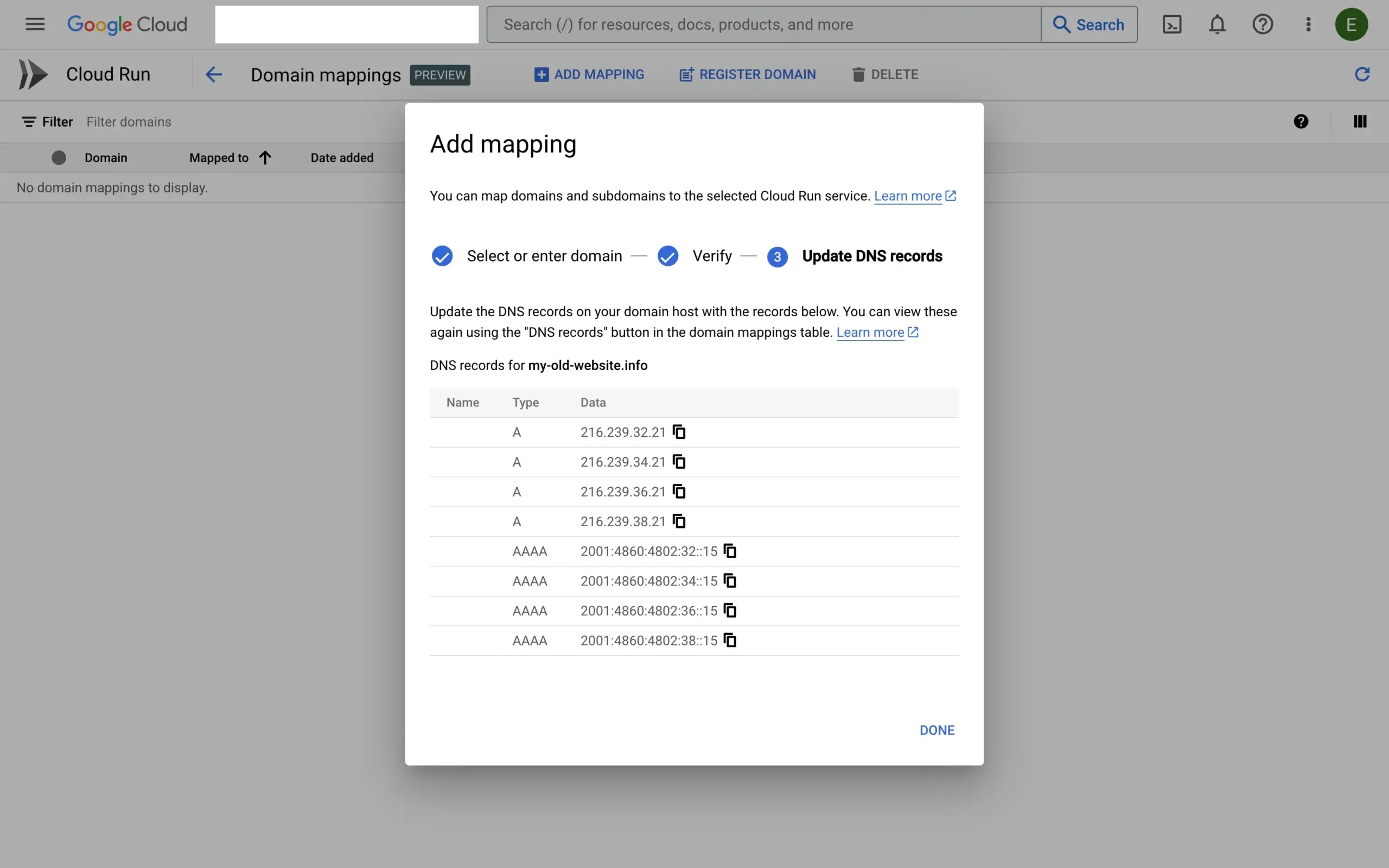
Once the mapping is created, you’ll see the DNS records (A and AAAA) to configure at your registrar.
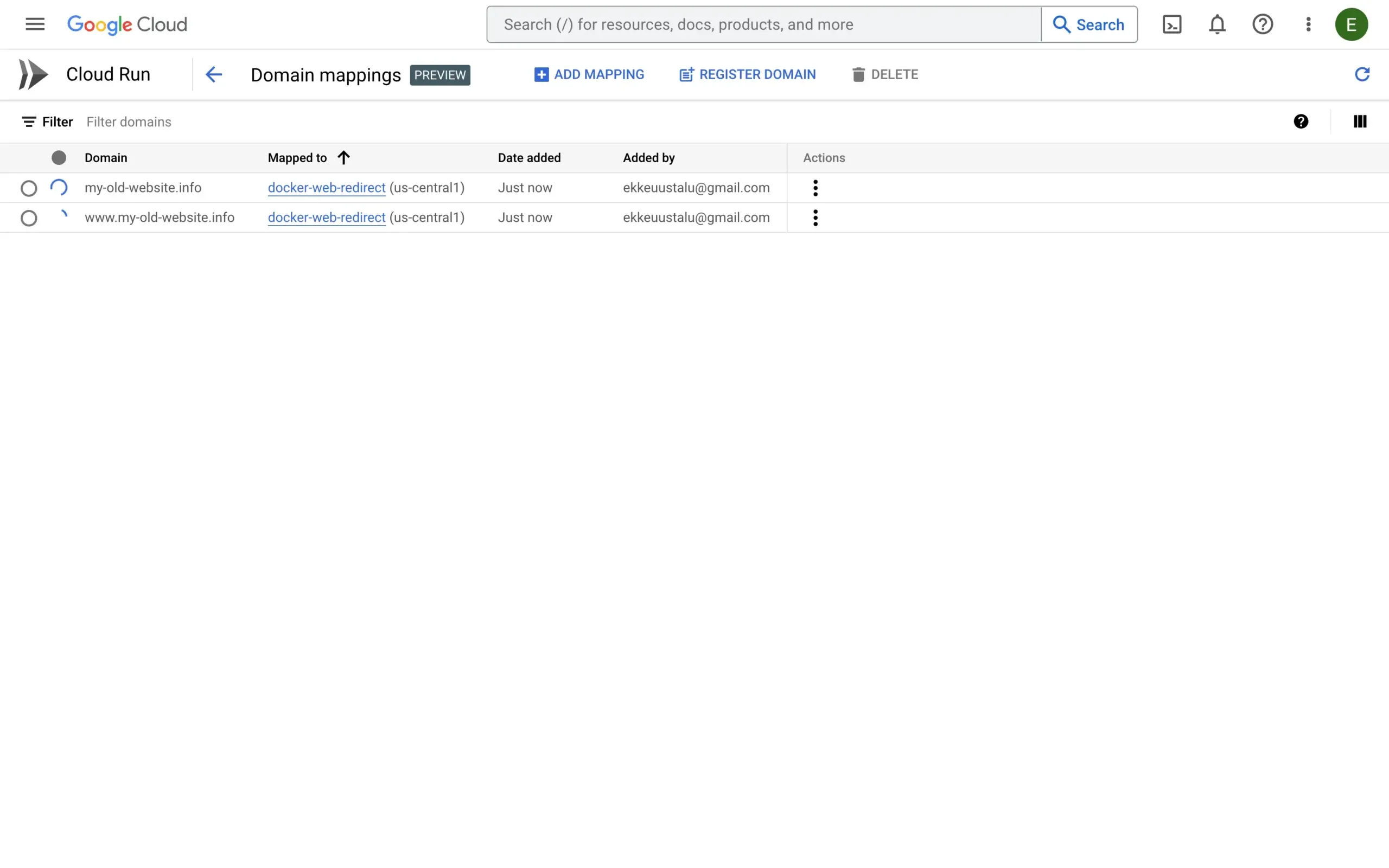
After configuring DNS, you’ll see pending domain mappings in the list. Create a www mapping too so both versions redirect.
Step 4: Test the Setup
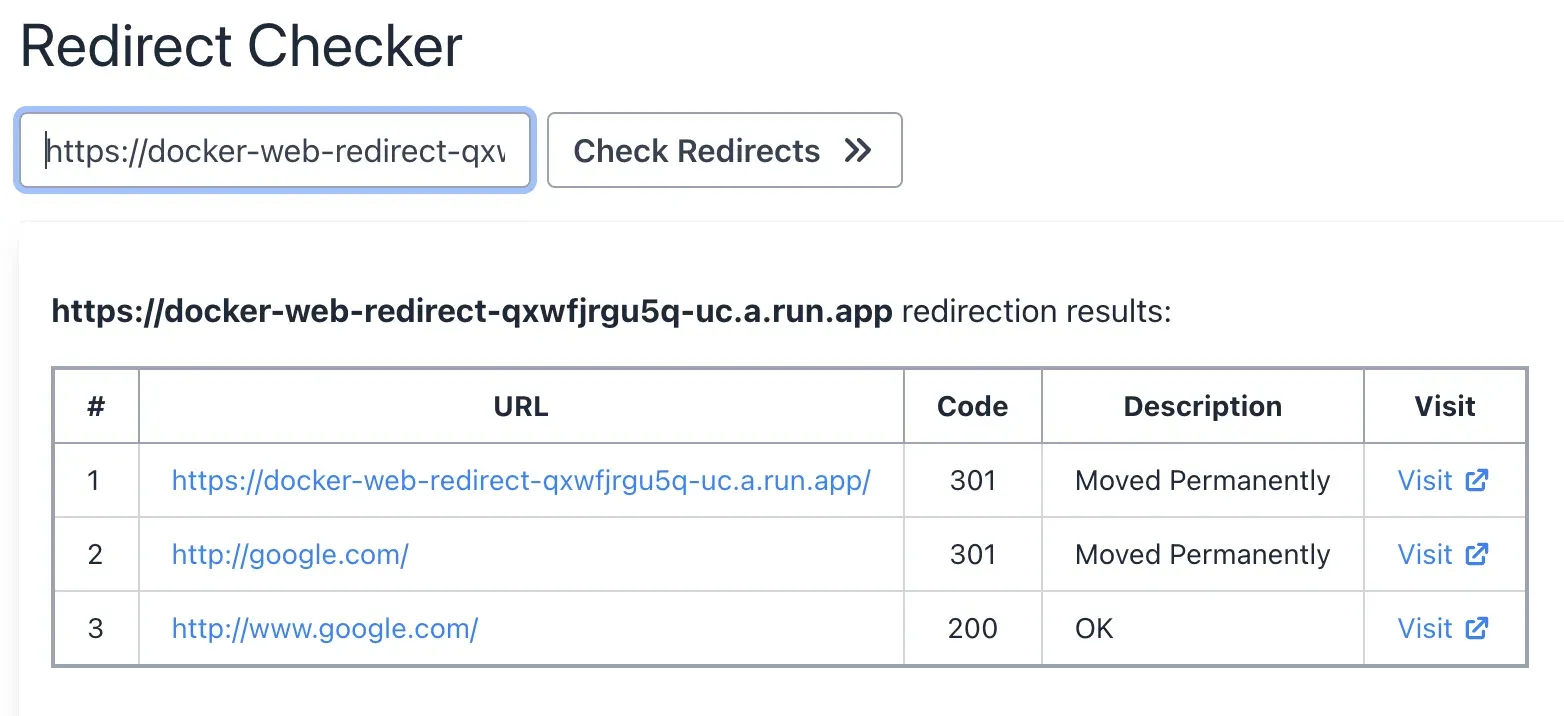
While waiting for DNS propagation, test with the auto-generated Cloud Run URL to confirm the redirect works.
The auto-generated domain redirects correctly:
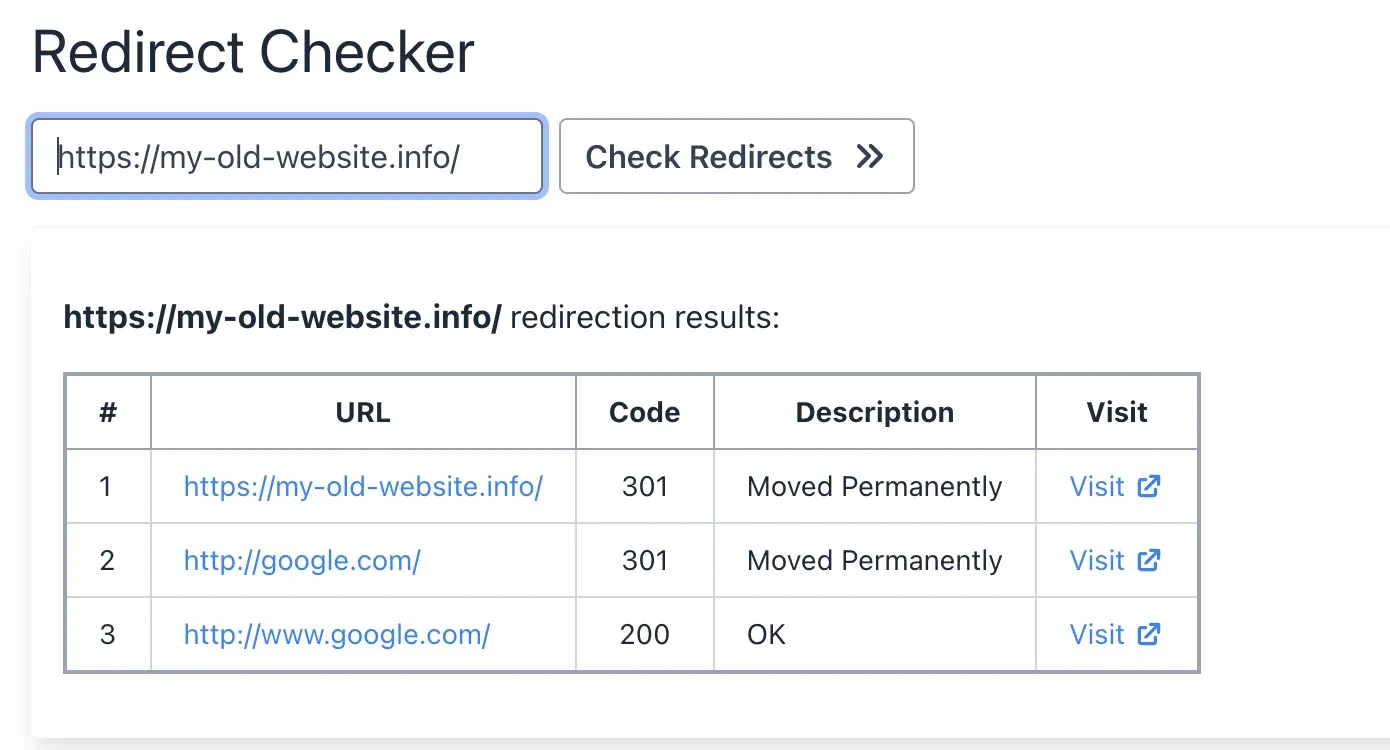
The custom domain also works, with HTTPS automatically provisioned:
Conclusion
Your Cloud Run service is now redirecting traffic to the target URL. Once Cloud Run detects the DNS changes (this can take several hours), your custom domain will also redirect correctly.
How Can I Do It Without Docker?
If configuring Docker and Cloud Run is more than you need, Domain-Forward.com handles domain redirects with automatic HTTPS, 301 redirects, and analytics — no containers or cloud configuration needed.
For other approaches, see our guides for AWS Route53 and Google Cloud Functions, or read our overview of all domain redirect options. You can verify your redirect with our redirect tester tool.