
TL;DR: Google Cloud Functions can handle domain redirects with a Node.js function, custom environment variables, and Cloud Run domain mapping. It’s free for up to 2M requests/month but takes 20+ minutes to configure. For a no-code alternative, Domain-Forward.com does the same thing in 5 minutes.
Introduction
This tutorial covers domain redirection using Google Cloud Functions — a serverless approach that’s pay-per-use with a generous free tier: 2 million monthly invocations at no cost.
By the end, you’ll have a deployed Cloud Function that redirects traffic to your target URL with configurable path and query parameter forwarding.
Prerequisites
Before we get started, ensure that you have the following:
- A Google Cloud account.
- Basic understanding of Node.js and JavaScript.
Steps to Redirect Traffic Using Google Cloud Functions
Step 1: Setting Up Your Google Cloud Function
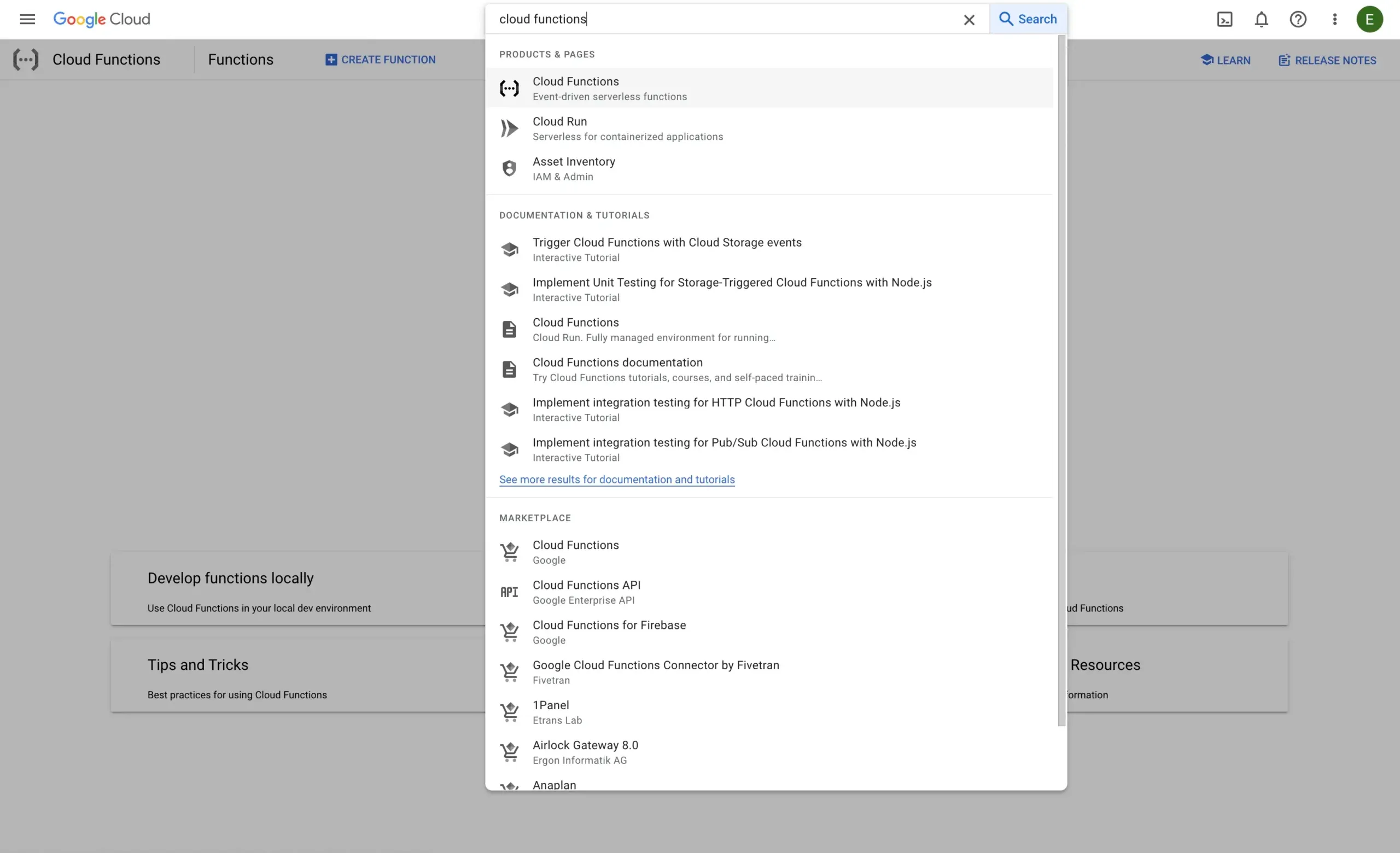
Create a new Cloud Function in the Google Cloud Console. Navigate to Cloud Functions from the sidebar.
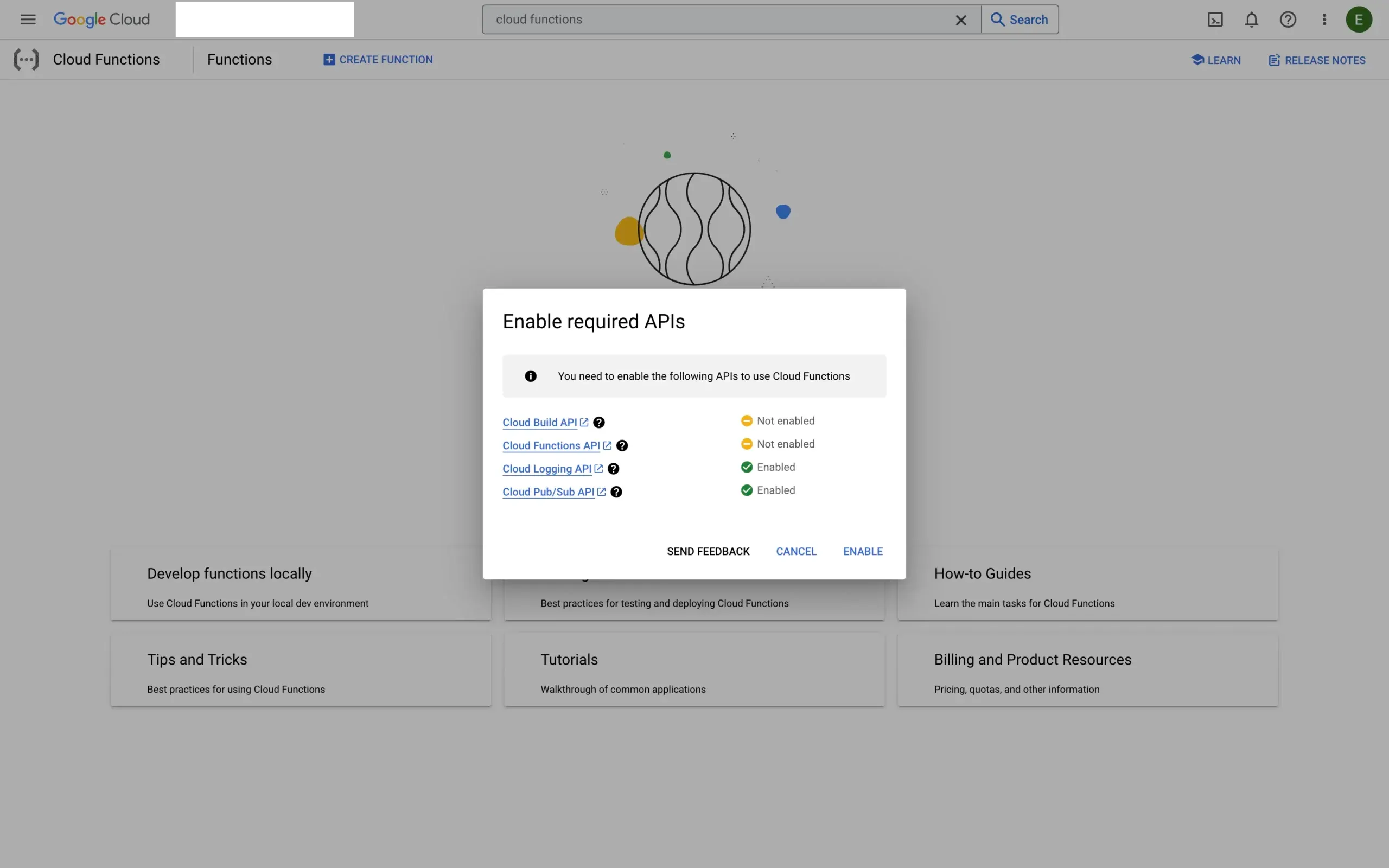
Enable the APIs that are required.
Click ‘Create Function’.
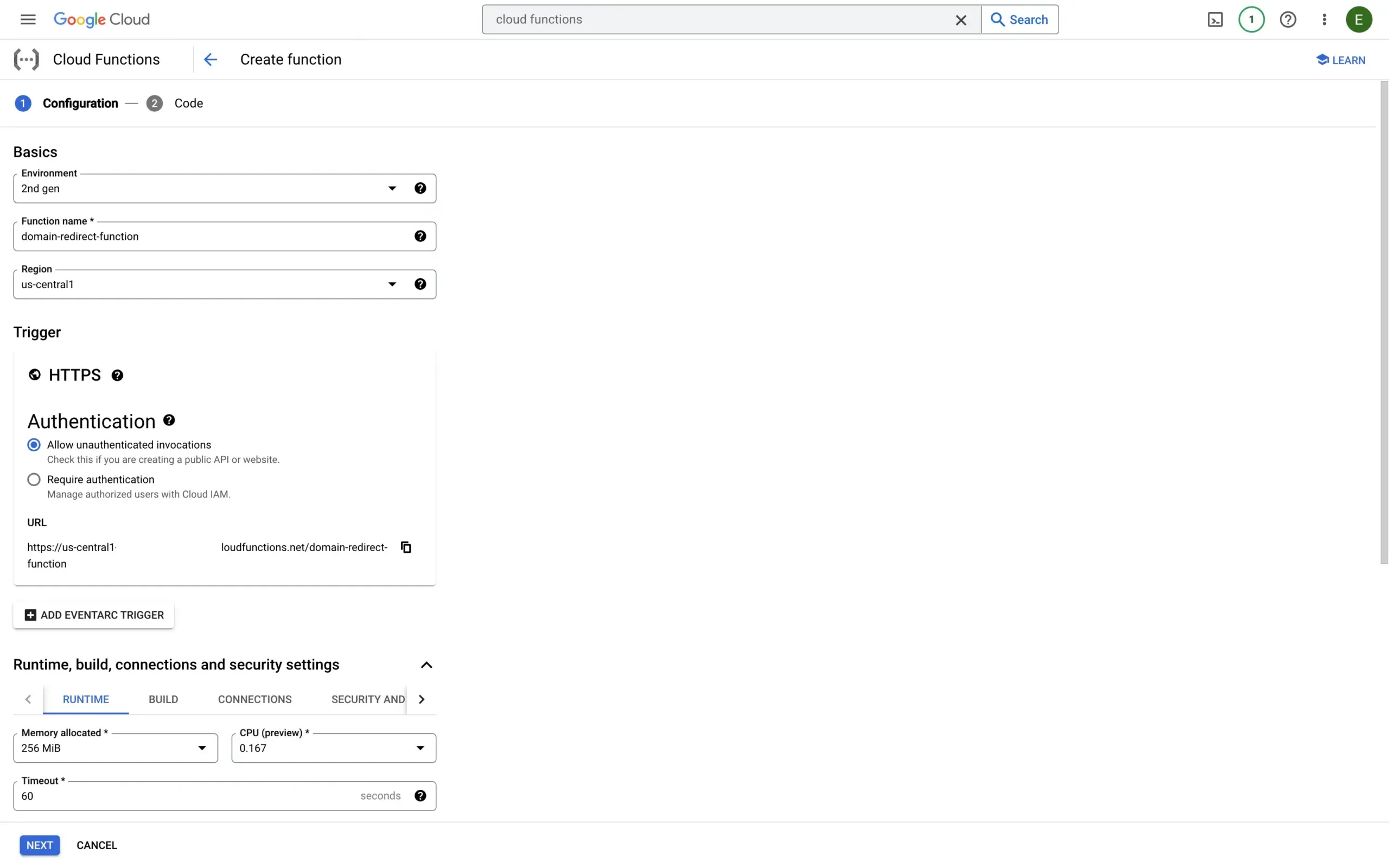
Configure the function:
- Provide a name
- Select 2nd gen as the environment
- Select us-central1 as the location
- Choose HTTPS as the trigger
- Check Allow unauthenticated invocations
Step 2: Environment Variables Configuration
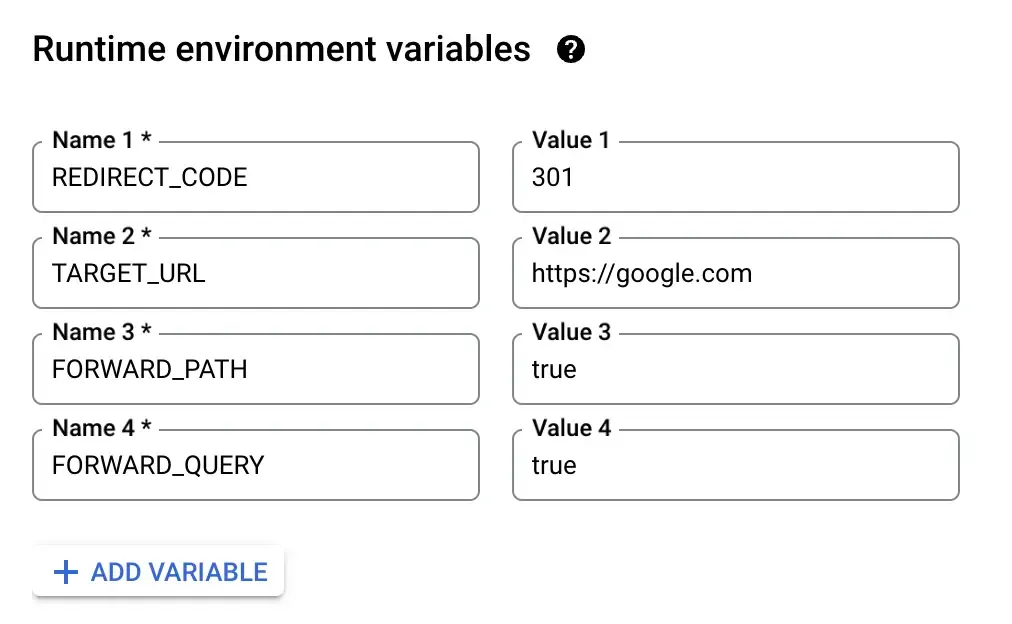
Set these environment variables:
REDIRECT_CODE: This is the HTTP status code that will be sent back to the client to indicate the redirection. Commonly used values are ‘301’ (Moved Permanently) or ‘302’ (Found).TARGET_URL: This is the URL where you want to redirect the traffic.FORWARD_PATH: If set to ‘true’, the source URL path will be appended to theTARGET_URL. If ‘false’, only the rootTARGET_URLwill be used.FORWARD_QUERY: If set to ‘true’, any query parameters in the original URL will be forwarded to theTARGET_URL.
Example: redirect https://old-domain.com to https://google.com with path (/contact) and query parameters (?utm_source=xyz) forwarded.
Step 3: Write Your Cloud Function
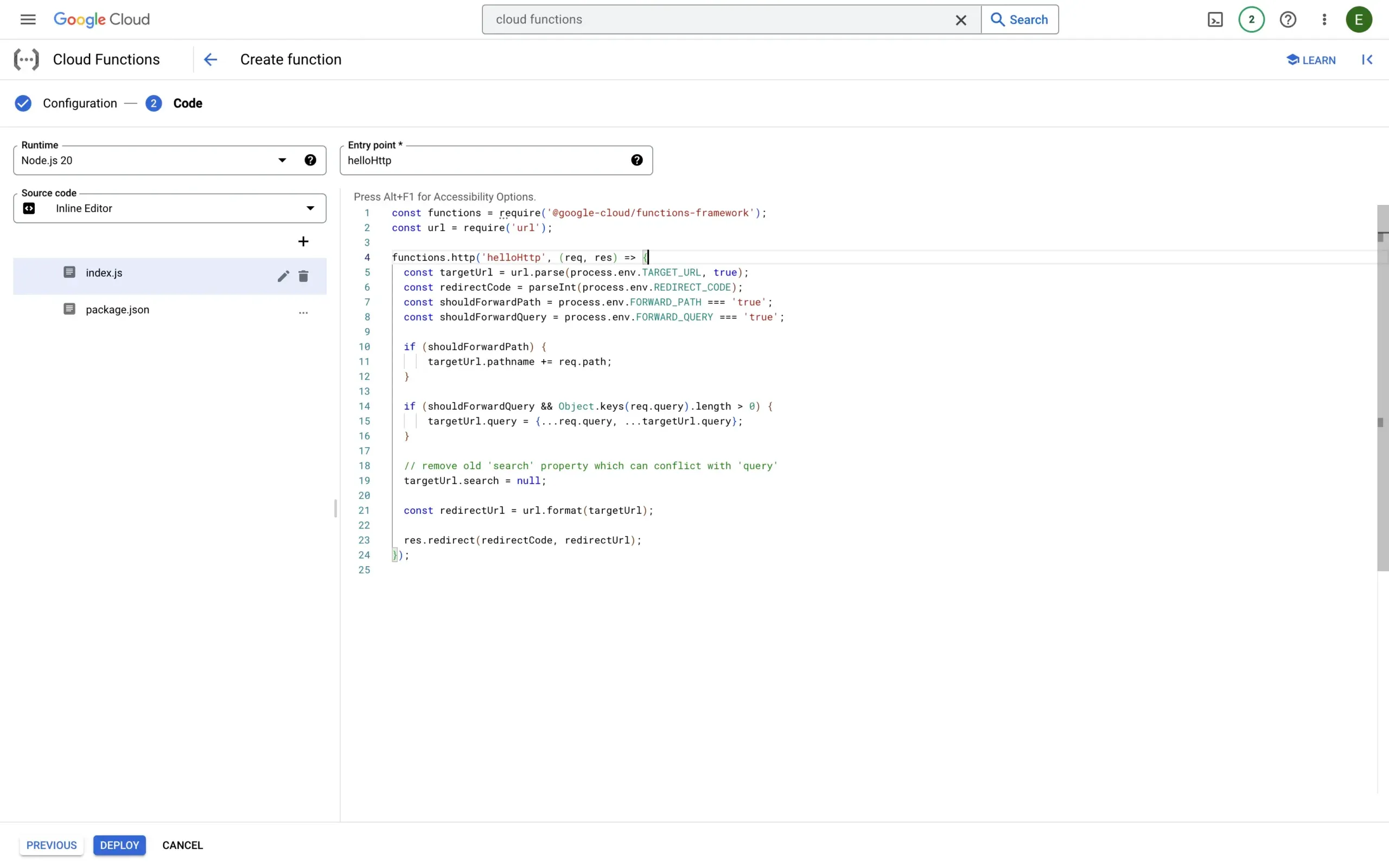
Click ‘Next’ to open the source code section. Set the runtime to Node.js and paste this code into index.js:
const functions = require('@google-cloud/functions-framework');
const url = require('url');

functions.http('helloHttp', (req, res) => {
  const targetUrl = url.parse(process.env.TARGET_URL, true);
  const redirectCode = parseInt(process.env.REDIRECT_CODE);
  const shouldForwardPath = process.env.FORWARD_PATH === 'true';
  const shouldForwardQuery = process.env.FORWARD_QUERY === 'true';

  if (shouldForwardPath) {
      targetUrl.pathname += req.path;
  }

  if (shouldForwardQuery && Object.keys(req.query).length > 0) {
      targetUrl.query = {...req.query, ...targetUrl.query};
  }

  // remove old 'search' property which can conflict with 'query'
  targetUrl.search = null;

  const redirectUrl = url.format(targetUrl);

  res.redirect(redirectCode, redirectUrl);
});
The function reads the environment variables, builds the redirect URL (appending path and query parameters as configured), and returns the redirect response.
It also merges incoming query parameters with any existing parameters in the targetUrl.
Step 4: Deploy Your Function
Click ‘Deploy’ to make the function live. Google Cloud provides a URL for testing once deployment completes — use it to verify your configuration.
Next, map your actual domain to this function.
Step 5: Mapping a Custom Domain to Your Cloud Function
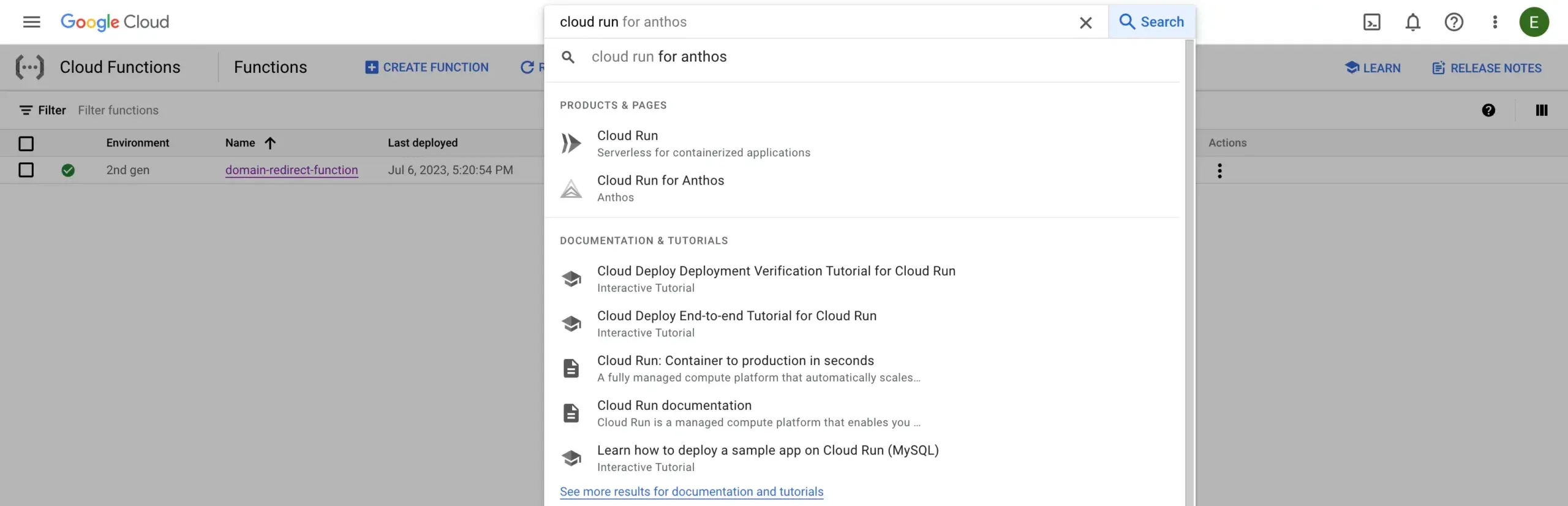
Custom domain mapping requires Google Cloud Run. Navigate to Cloud Run using the search bar.
From the top menu, select ‘Manage custom domains’ and click ‘Add mapping’.
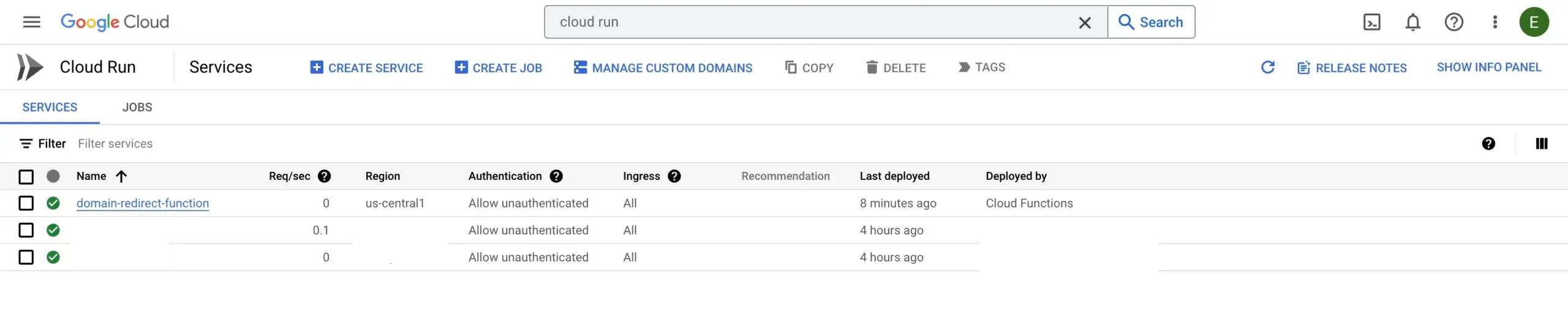
Select the Cloud Function you created. Identify it by the name you gave it in Step 1.
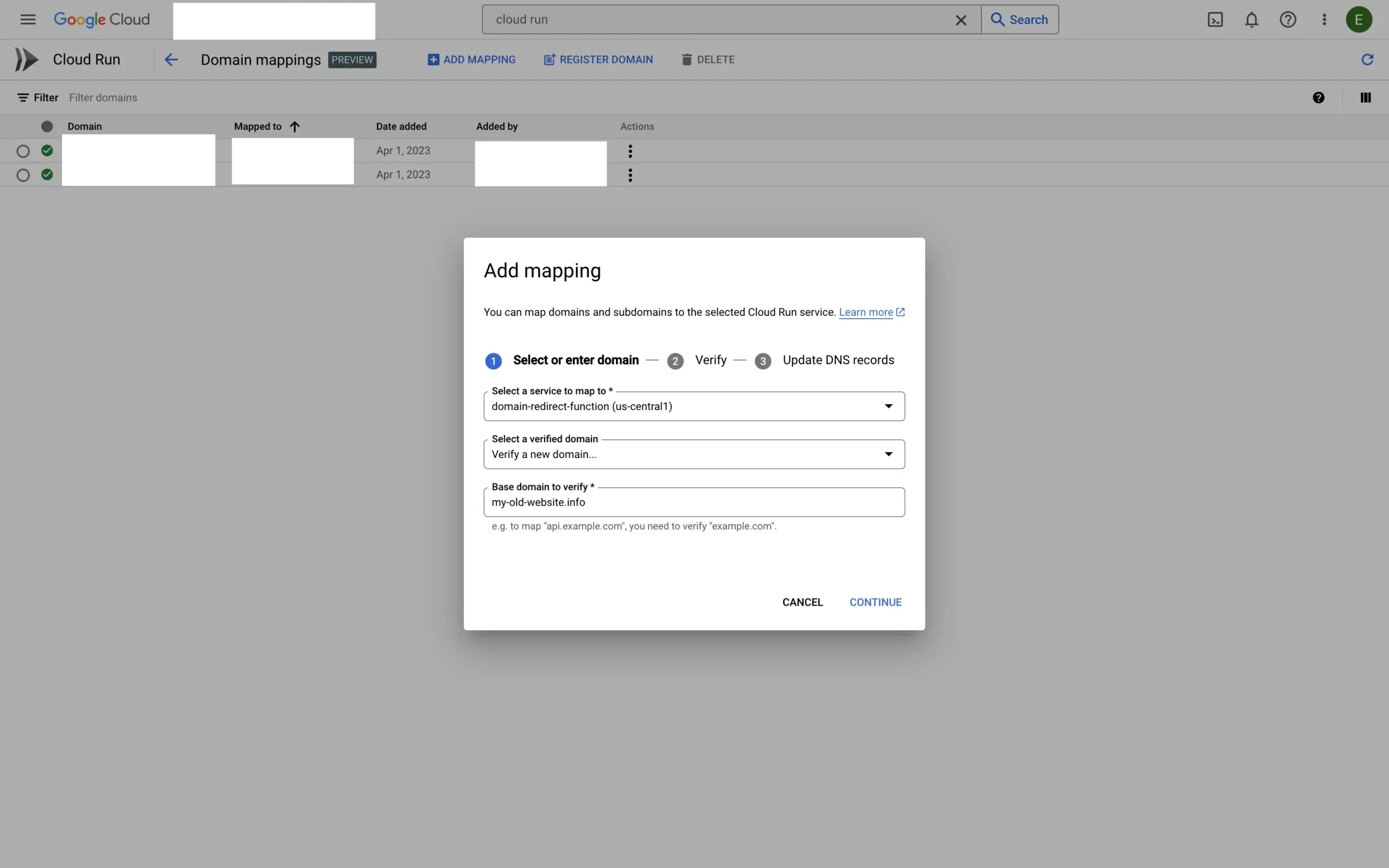
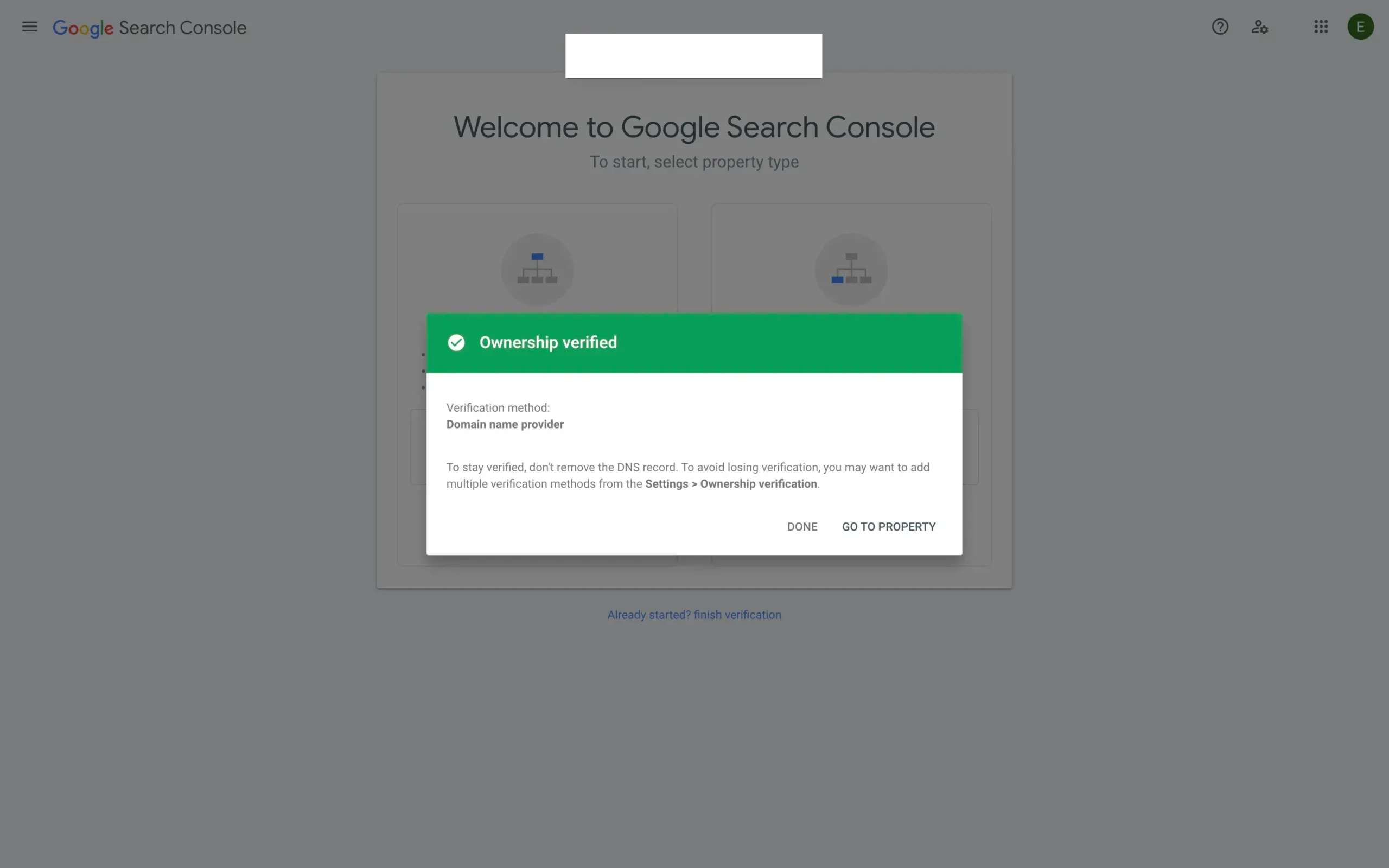
You need to verify domain ownership via Google Search Console. Follow this verification tutorial if you haven’t done this before.
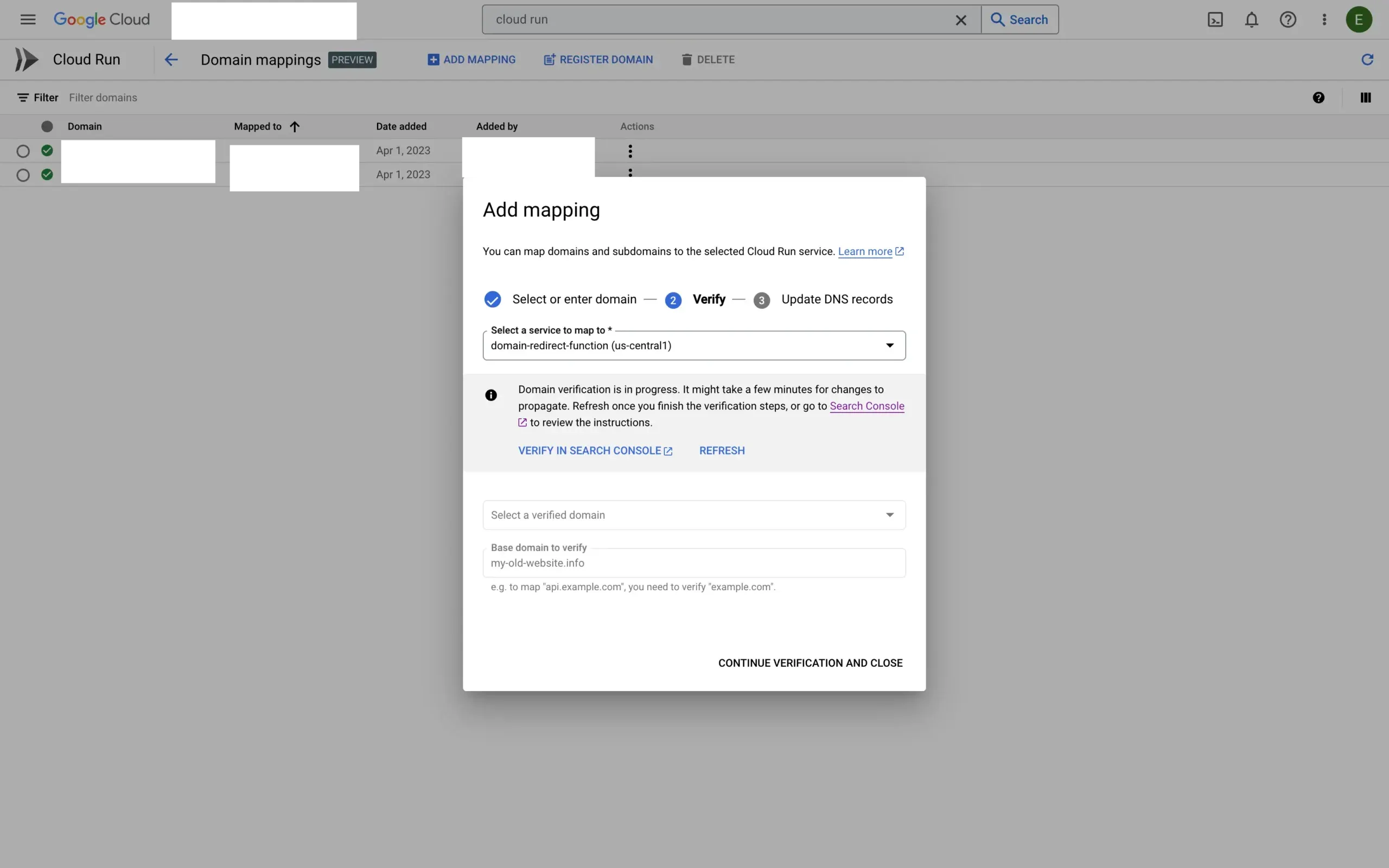
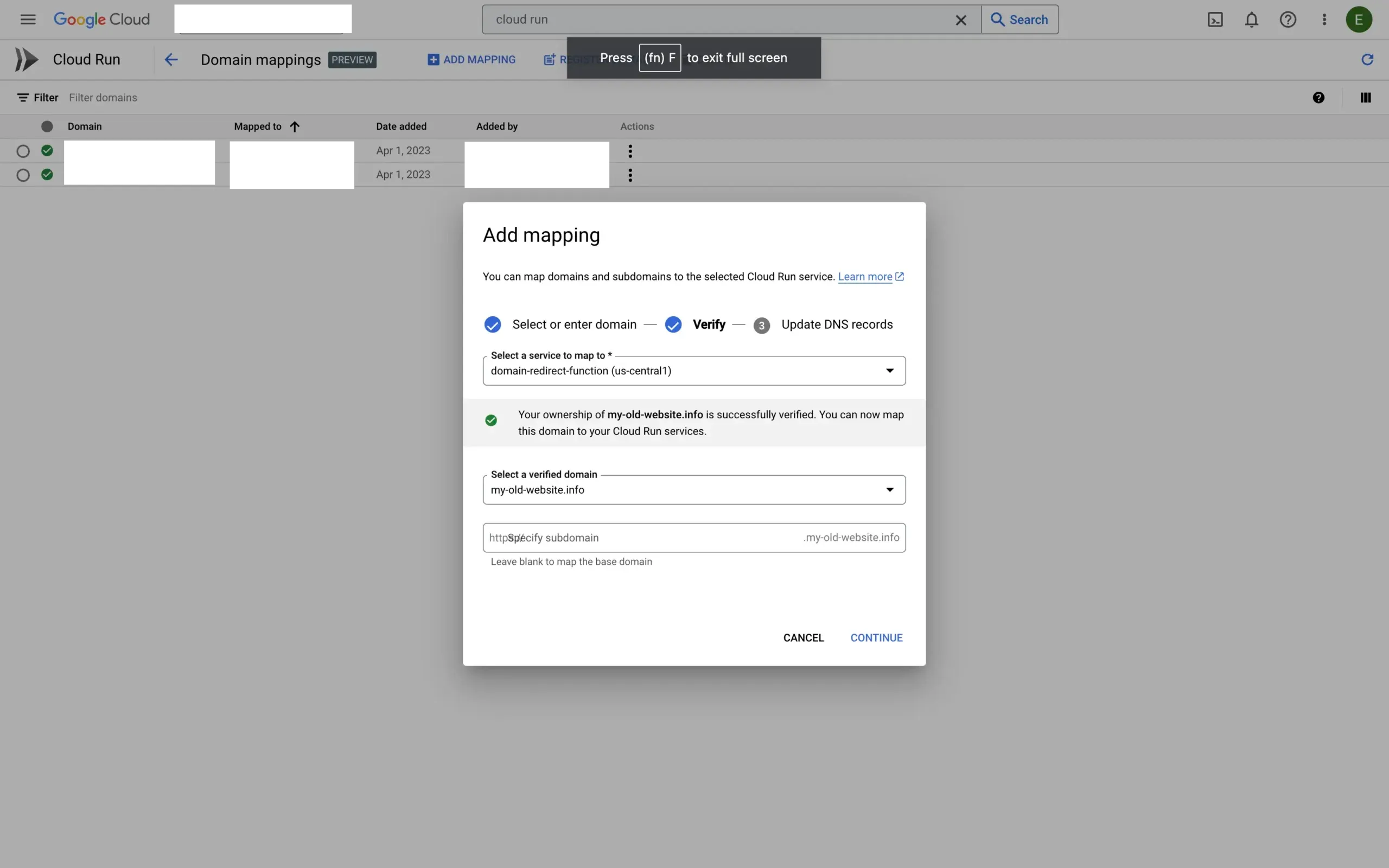
Once verified, return to Google Cloud Platform and continue with the domain mapping.
After validation, click ‘Continue’ and configure the A and AAAA records at your domain registrar as shown. Map both the root domain and www subdomain to the same Cloud Function.
Once DNS records propagate (up to 24 hours), your custom domain will serve the redirect function over HTTPS.
Conclusion
Your Cloud Function is now handling domain redirects. Adjust the environment variables anytime to change the redirect target, status code, or path/query forwarding behavior.
How can I do it without writing code?
If you are looking for an easy way to redirect a domain without configuring cloud infrastructure, use Domain-Forward.com. You can create your first redirect using the Getting Started guide. No code, no cloud setup, and automatic HTTPS included.
Looking for other redirect methods? Check out our guides for AWS Route53 and Google Cloud Run, or read our overview of all domain redirect options. You can verify your redirect with our redirect tester tool.